

AI Features
WP-ImmoMakler can automatically generate search-engine-optimised content based on existing property data and descriptions. The feature is configured in the backend of your website (wp-admin) under WP-ImmoMakler → Integrations → AI Features. Since WordPress 7.0, the AI connection itself is managed centrally via WordPress Connectors. PLUS
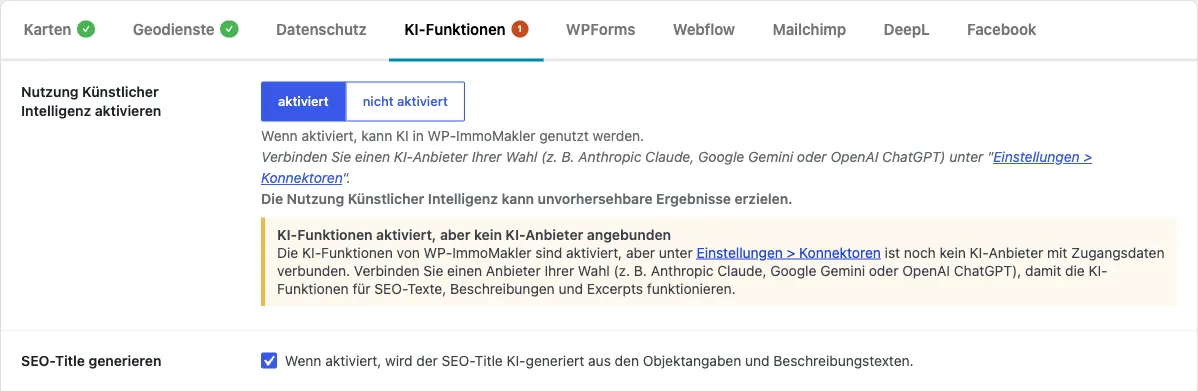
Connecting an AI Provider
Section titled “Connecting an AI Provider”WP-ImmoMakler uses the WordPress AI Client — a standardised interface through which various AI providers can be connected without being tied to a specific service.
Supported providers
Section titled “Supported providers”By default, the following providers are available in WordPress Core:
You can configure one or more providers simultaneously. WP-ImmoMakler automatically selects a suitable model from the configured providers.
Entering API keys
Section titled “Entering API keys”Navigate in the backend of your website (wp-admin) to Settings → Connectors and enter the API key for the desired provider. The credentials are stored centrally in WordPress and are available to all plugins that support the WordPress AI Client.
For a detailed step-by-step guide — how to set up a connector and create an API key for Anthropic Claude, Google Gemini, and OpenAI ChatGPT — see Setting up AI connectors.


WordPress versions and AI connection
Section titled “WordPress versions and AI connection”Before WordPress 7.0, WP-ImmoMakler shipped the WP AI Client as a library bundled with the plugin, and the API keys were stored in plugin-specific options. With WordPress 7.0, the AI Client and the new Connectors are part of WordPress Core. AI credentials have since been managed centrally under Settings → Connectors.

Settings in WP-ImmoMakler
Section titled “Settings in WP-ImmoMakler”Which texts are automatically generated and how the prompts are formulated is set in the backend of your website (wp-admin) under WP-ImmoMakler → Integrations → AI Features.
Activate use of artificial intelligence
Section titled “Activate use of artificial intelligence”Global master switch for all AI features. As long as this switch is disabled, neither SEO texts nor excerpts will be generated — even if the individual features below are enabled.
When the switch is active, WP-ImmoMakler checks whether an AI provider with credentials is connected under Settings → Connectors. If the connection is missing, two notices appear:
- a red status dot on the WP-ImmoMakler menu item in the side admin navigation,
- a yellow, dismissable notice banner with the title “AI features enabled, but no AI provider connected” above the Integrations settings.
Both link directly to the Connectors page so you can quickly set up the connection.
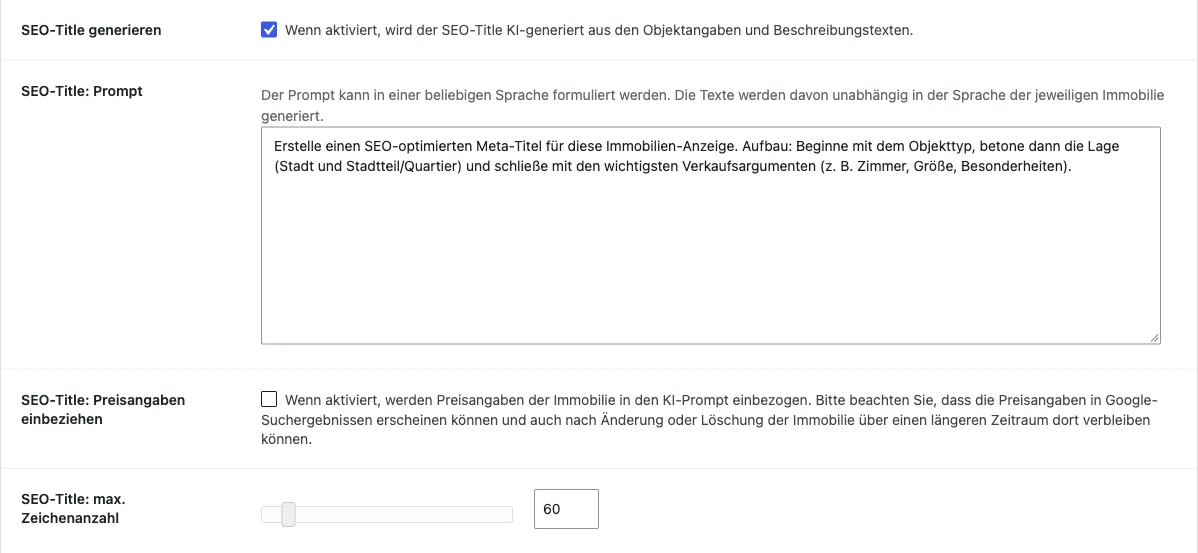
SEO title
Section titled “SEO title”The SEO title appears as the headline in search results. It reaches the <title> tag in the HTML head via an SEO plugin such as Yoast SEO or Rank Math SEO – WP-ImmoMakler does not output it itself. Why, is explained under Output in the HTML head: SEO plugin required.
The following options are available:
- Generate SEO title — Enables generation. When active, the SEO title is AI-generated from the property details and descriptions.
- SEO title: Prompt — The instruction text for the AI. The prompt can be written in any language; the generated texts will appear in the language of the respective property regardless.
- SEO title: Include price information — When enabled, price information is included in the prompt. Default: disabled. Note that price information may appear in Google search results and can remain there for an extended period even after the property is changed or deleted.
- SEO title: max. character count — Maximum length of the generated title. Default: 60 characters, allowed range: 10 to 500.
SEO description
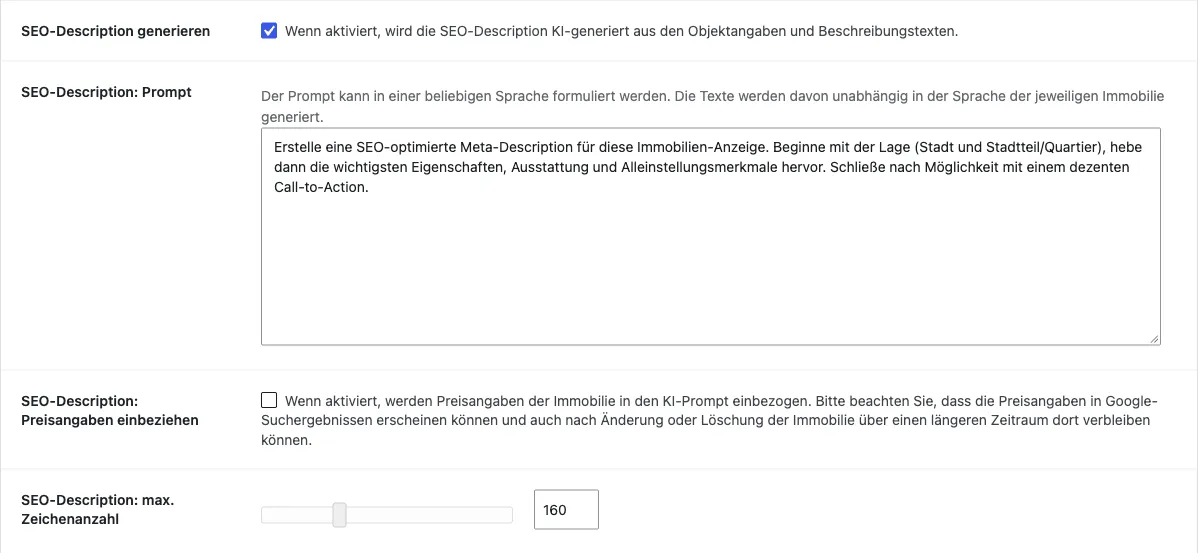
Section titled “SEO description”The SEO description appears in Google search results below the title. It likewise reaches <meta name="description"> in the HTML head via an SEO plugin such as Yoast SEO or Rank Math SEO, which automatically adopts the generated description.
As long as the AI has not yet answered, the text that WP-ImmoMakler generated from its templates during import is delivered; the AI version then replaces it. If the AI features are disabled, the texts from the templates remain in place — see SEO Title and SEO Description.
For reference properties – properties already sold or rented – the AI additionally receives the note that the property is no longer available. It then no longer offers the property and instead addresses owners who are ready to sell. This note is appended to every prompt and cannot be overridden.
The following options are available:
- Generate SEO description — Enables generation.
- SEO description: Prompt — The instruction text for the AI. The prompt language can be freely chosen.
- SEO description: Include price information — Default: disabled.
- SEO description: max. character count — Default: 160 characters, allowed range: 10 to 500.
Excerpt
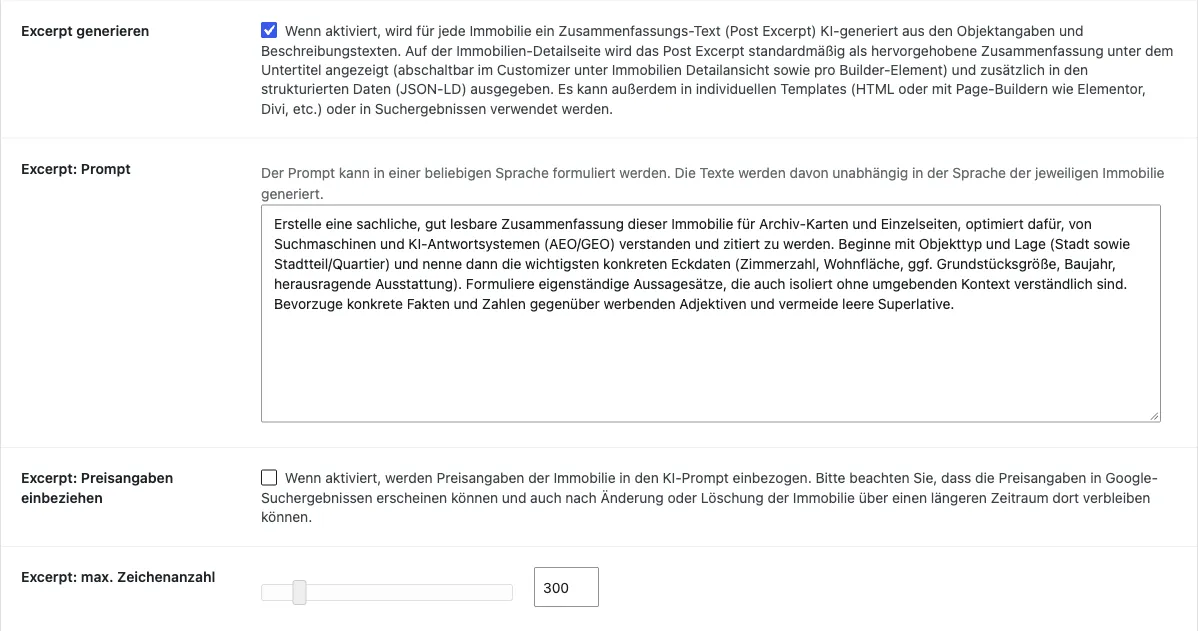
Section titled “Excerpt”The excerpt is a compact summary of the most important property features. It is stored in the WordPress standard field post_excerpt and can be used in the following places:
- Detail page (single view) — as a highlighted lead paragraph below the subtitle (active by default, see Display on the detail page)
- Structured data (JSON-LD) — as the
disambiguatingDescriptionof the property, separate from the SEO description - Custom templates via the WordPress functions
get_the_excerpt()andthe_excerpt() - Page builders such as Elementor, Divi, or Beaver Builder
- Search results pages and list views as teaser text
- REST API endpoints
The following options are available:
- Generate excerpt — Enables generation.
- Excerpt: Prompt — The instruction text for the AI.
- Excerpt: Include price information — Default: disabled.
- Excerpt: max. character count — Default: 300 characters, allowed range: 10 to 2,000.
Display on the detail page
Section titled “Display on the detail page”Regardless of whether the text was entered manually or generated by AI, WP-ImmoMakler displays the excerpt on the property detail page by default as a highlighted summary directly below the subtitle (CSS class immomakler-property-excerpt). If no excerpt is stored for a property, the paragraph is not output.
The display can be controlled in two places:
- Customiser: in the backend of your website (wp-admin) under WP-ImmoMakler → Customiser → Property Detail View → Show summary — toggles the paragraph for the standard detail view on or off.
- Page Builder: The “Detail view (complete)” builder elements for Elementor, WPBakery, Divi, Bricks, and Oxygen, as well as the Gutenberg block “Property Detail View”, each have their own Show summary option, allowing you to override the output per template.
In addition, the excerpt is output in the structured data (JSON-LD) of the property as disambiguatingDescription — separate from the description (SEO description). This provides search engines and AI answer systems (AEO/GEO) with a compact, standalone summary of the listing. Details on the Schema.org output can be found under Schema.org / Structured Data.

Reset default prompts
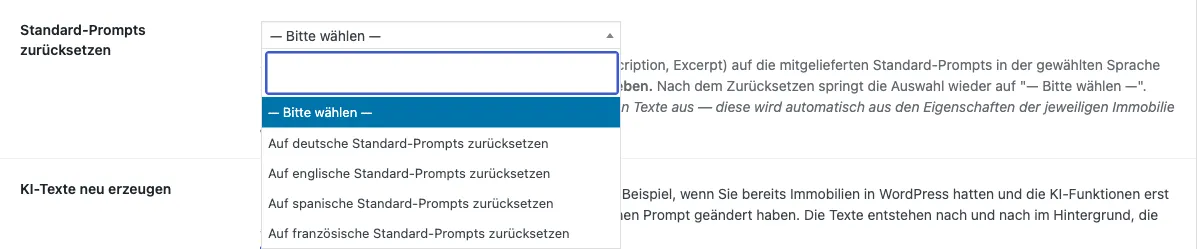
Section titled “Reset default prompts”Directly above the Save button is the Reset default prompts dropdown. Select a language here (German, English, Spanish, or French) and all three prompt fields (SEO title, SEO description, excerpt) are immediately reset to the built-in default prompts in the chosen language. The dropdown then returns to ”— Please select —”.
Any custom changes will be overwritten. Save important customisations beforehand, or use this feature deliberately to start fresh with a clean template.
The built-in default prompts are written in an informal style, as is common for prompts to language models. The language selected here has no influence on the language of the AI-generated texts — that is determined automatically from the properties of the respective property.
When the texts are created
Section titled “When the texts are created”The AI texts are not created during the import but shortly afterwards, in the background. As soon as a property has been imported and published, WP-ImmoMakler notes which of the three texts are still missing, and a background process works through that queue. The import therefore no longer waits for the AI provider and runs through promptly even when the provider answers slowly or is temporarily unreachable.
Until the AI texts are available, the property is not left without text: at import time WP-ImmoMakler first builds the SEO title, SEO description, and excerpt from the property data itself — from property type, location, area, and number of rooms. These default texts are replaced as soon as the AI has answered.
Timing
Section titled “Timing”The background process runs every five minutes and takes on up to five properties per run. Since up to three texts are generated per property, that amounts to at most 15 requests to your AI provider per run. After a full sync covering several hundred properties it therefore takes some time until all texts are available — the queue is preserved throughout and is worked through step by step.
The background process is a WordPress cron event and therefore needs — like the automatic import — your website to be called regularly. On websites with little visitor traffic it is best to set up a real cron job for this; how to do so is described under Automatic import via cron job.
Regenerating AI texts for existing properties
Section titled “Regenerating AI texts for existing properties”A property only enters the queue by itself during the import. For properties already in WordPress there are three triggers:
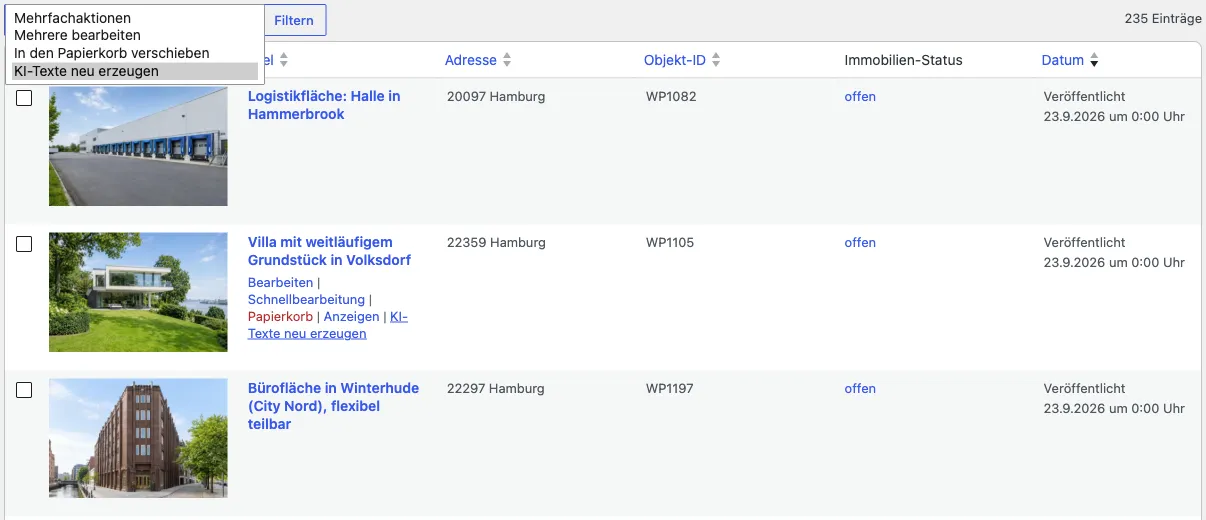
- A single property — in the backend of your website (wp-admin) under WP-ImmoMakler → Properties, the property’s row offers the action Regenerate AI texts.
- A selection — select several properties and choose Regenerate AI texts from Bulk actions above the list.
- All properties — in the AI Features tab, below the prompt settings, you will find the button Regenerate AI texts for all properties.
None of these clicks generates text itself: it merely places the property in the queue that the background process then works through. A click can therefore never hang on the AI provider, and you can carry on working immediately.
The whole portfolio is queued gradually as well — 50 properties per run of the background process, so that even a website with several thousand properties does not hang on a single request. While the walk is running, the tab shows a note that a walk is already in progress along with the button Cancel walk instead of the start button. Cancelling only stops further queueing; properties already queued keep their place in the queue. The tab also shows how many properties are currently waiting.
The three actions only appear when at least one of the three texts is enabled and your user account is allowed to manage properties (capability manage_immomakler_properties).
Typical occasions: you changed a prompt above and want to apply it to the existing portfolio, or you only enabled the AI features once the properties had long been in WordPress.

When the AI provider does not answer
Section titled “When the AI provider does not answer”- Request limit reached (rate limit or exhausted quota): WP-ImmoMakler then pauses all AI requests. If the provider states a waiting time, that time is adopted, otherwise the pause is five minutes; it never pauses for longer than one hour. Afterwards the queue continues. This does not count as a failed attempt for the property.
- No AI provider connected: The queue remains in place and is checked again one hour later. As soon as you have entered an API key under Settings → Connectors, the texts are caught up on.
- Individual failure on one property: Only that property is deferred and retried at growing intervals. After five unsuccessful attempts WP-ImmoMakler removes it from the queue; the next import of that property starts the process from the beginning.
WP-ImmoMakler records what the background process does in a log file immomakler-ai-… in the import directory — separate from the import log, so that provider timeouts and retries do not swamp it.
Effect on the PDF exposé PLUS
Section titled “Effect on the PDF exposé ”The PDF exposé carries the SEO title and SEO description into its document properties. A PDF preloaded at publish time therefore initially holds the default texts. WP-ImmoMakler discards it as soon as a property’s AI texts have been written and generates it anew.
Frequently asked questions
Section titled “Frequently asked questions”Are existing texts regenerated after a prompt change? No. A changed prompt applies to every text generated afterwards; texts that already exist remain as they are. A property enters the queue when it is newly imported or updated via an update import — a prompt change therefore only takes effect the next time a property is imported.
To have texts regenerated for all existing properties, use the Regenerate AI texts for all properties button in the AI Features tab — see Regenerating AI texts for existing properties. A full sync in your estate agent software achieves the same result, but retransmits all property data in the process.
Why does a freshly imported property show a different text at first? Because the AI texts are only created in the background shortly after the import. Until then the property shows the default texts that WP-ImmoMakler assembles from the property data itself. See When the texts are created.
What data does the AI use? The system evaluates all entered property data — location, type, area, number of rooms, amenities — as well as manually entered descriptions. Price information is only included when the respective option is explicitly enabled for the SEO title, SEO description, or excerpt. The more complete the data, the better the generated texts.
Is SEO knowledge required? No. The AI handles the optimisation automatically. It is nevertheless advisable to occasionally review the generated texts and adapt them to your own company language.
In which language is the prompt supplied? By default in German. Using the Reset default prompts dropdown at the bottom of the tab, you can switch to English, Spanish, or French at any time and load the respective template into all three prompt fields. The loaded prompt can then be freely customised. The language of the prompt does not affect the language of the generated texts — that is determined automatically per property.