

Bricks Builder
WP-ImmoMakler provides a native integration for Bricks Builder. It lets you build custom list and detail views for properties — either as an all-in-one complete element or assembled from individual building blocks.
The integration provides 15 elements (16 with WP-ImmoMakler Plus), 12 conditions, and 7 Dynamic Tags.
Requirements
Section titled “Requirements”- Bricks Builder (active theme)
- WP-ImmoMakler BASIC, PLUS, or PREMIUM
The integration loads automatically as soon as Bricks is active as the theme. No manual activation is required.
List view
Section titled “List view”Create custom property list views as a Bricks Archive Template. Use the complete element for a quick start, or the results list for a fully custom layout.
Detail view
Section titled “Detail view”The detail view is also designed entirely with Bricks. Specialized elements for property data, energy certificates, image galleries, features, maps, videos, and contact forms are available — supplemented by Dynamic Tags for maximum flexibility.
Elements
Section titled “Elements”All WP-ImmoMakler elements appear in the Bricks panel under the WP-ImmoMakler category.
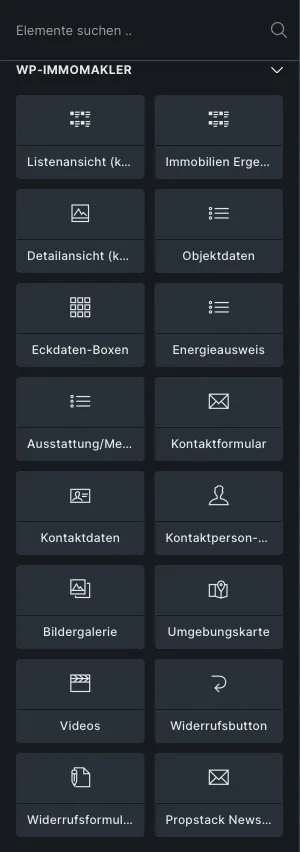
Complete elements
Section titled “Complete elements”| Element | Description | Used in |
|---|---|---|
| List view (complete) | Complete property list incl. search, map, and pagination | Archive template |
| Detailed view (complete) | Complete property detail page | Single template |
Individual elements
Section titled “Individual elements”| Element | Description |
|---|---|
| Real estate results list | The property loop results list (without search form and map) |
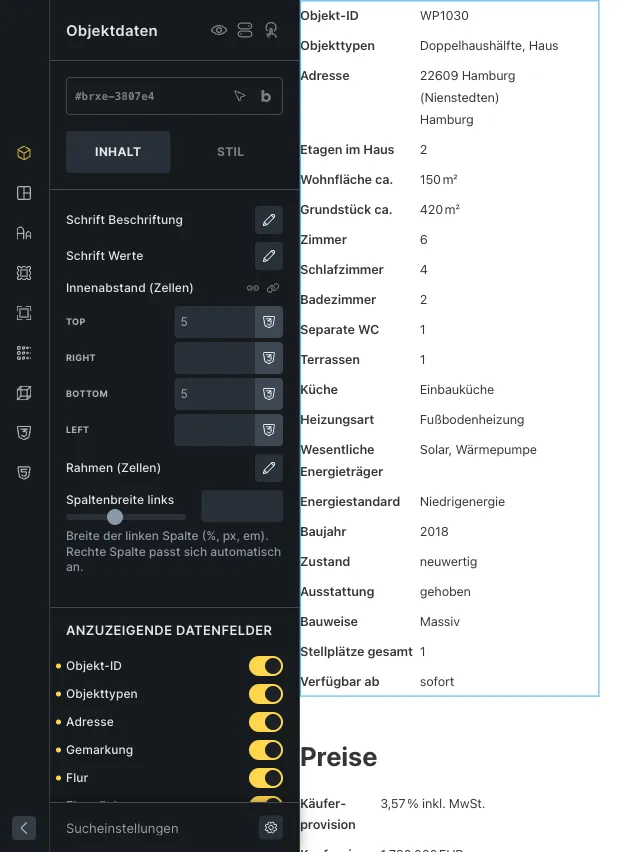
| Object data | Property data table as a definition list with toggleable fields |
| Energy certificate | Energy certificate data with country-specific support (DE, AT, ES, IT) |
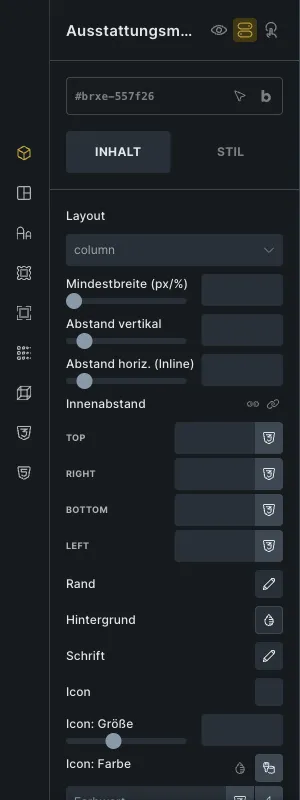
| Equipment/features | Property features with icon, layout, and styling options |
| Gallery | The property image gallery |
| Neighborhood map | Map showing the property’s location |
| Contact Form | The contact form for the property |
| Videos | All videos associated with the property |
| Key detail boxes | Selected property data as boxes with a label and a value |
| Contact details | Details of the contact person as a definition list |
| Contact person photo | Photo of the contact person |
| Cancellation button | Button for withdrawing from a contract, see Withdrawal button |
| Cancellation form | Form for withdrawing from a contract, see Withdrawal button |
| Propstack Newsletter PLUS | Newsletter sign-up with Propstack double opt-in, see Propstack Newsletter |
Styling individual elements
Section titled “Styling individual elements”Property Data and Energy Certificate
Section titled “Property Data and Energy Certificate”Both elements are based on a definition list and share the same styling options:
- Label typography — Font, size, color, etc. of the field labels
- Value typography — Font, size, color, etc. of the field values
- Inner spacing — Padding for cells
- Border — Border for cells
- Left column width — Width of the label column (default: 40%)
Individual data fields can be shown or hidden using the switches under Data fields to be displayed.
Features
Section titled “Features”The element offers extensive styling options:
- Layout — Column or row
- Minimum width per feature item
- Spacing — Row and column gap
- Inner spacing and border per item
- Background per item
- Typography of the feature text
- Icon — Freely selectable icon (default:
far fa-circle-check) - Icon size, color, and spacing relative to the text
Dynamic Tags
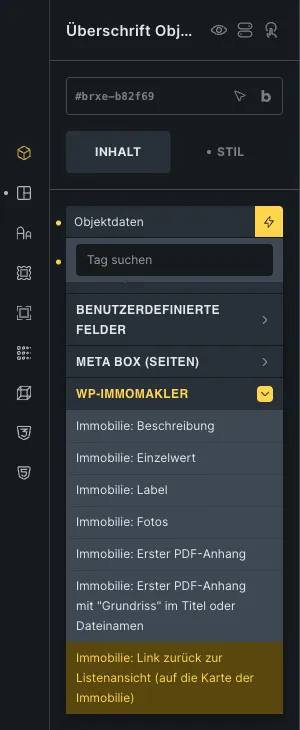
Section titled “Dynamic Tags”Dynamic Tags let you insert property data directly into any Bricks element (headings, text, images, etc.). All tags appear under the WP-ImmoMakler group.
Single value
Section titled “Single value”Syntax: {immomakler_value:key} — Outputs the formatted value of a property data field.
{immomakler_value:wohnflaeche} → 120.50 m²{immomakler_value:kaufpreis} → 450,000.00 EUR{immomakler_value:anzahl_zimmer} → 4{immomakler_value:plz} → 20095{immomakler_value:baujahr} → 1998Syntax: {immomakler_label:key} — Outputs the (translated) field label.
{immomakler_label:wohnflaeche} → Living Area{immomakler_label:kaufpreis} → Purchase PriceDescription
Section titled “Description”Syntax: {immomakler_description:key} — Outputs a description text for the property. The output is automatically processed (bullet points, clickable links, and phone numbers).
{immomakler_description:objektbeschreibung} → Property description{immomakler_description:ausstatt_beschr} → Features description{immomakler_description:lage} → Location description{immomakler_description:sonstige_angaben} → Additional information{immomakler_description:dreizeiler} → Short descriptionPhotos
Section titled “Photos”Syntax: {immomakler_property_images} — Returns property photos as an image source. Used in Bricks elements that expect an image source (e.g., Carousel, Gallery, Image).
{immomakler_property_images} → All images{immomakler_property_images:floorplans} → Floor plans only{immomakler_property_images:non_floorplans} → All images except floor plansPDF attachments
Section titled “PDF attachments”Returns the URL of a PDF attachment of the property. Use the tags in Bricks elements that expect a link (e.g., Button).
{immomakler_pdf_attachment_url} → First PDF attachment{immomakler_pdf_floorplan_attachment_url} → First PDF attachment with "floor plan" in the title or file nameThe second tag searches the title and file name of the PDF attachments for “floor plan” — case does not matter, and spellings such as “floor plans” or “floorplan_ground.pdf” are recognized too. If several PDFs are attached to a property, for example an exposé and an energy certificate, this lets you link specifically to the floor plan.
Back to the list view
Section titled “Back to the list view”For your own “Back to the overview” button in the single template: the tag leads back to the list the visitor came from — the filtered search, page 3 of the overview, the carousel on the homepage — and scrolls there to the property’s card. This also works on websites with a caching plugin.
{immomakler_back_url} → Link back to list view (to the property's card)Conditions
Section titled “Conditions”Conditions control when a Bricks element or template is displayed. They appear under the WP-ImmoMakler group.
Taxonomy conditions
Section titled “Taxonomy conditions”| Condition | Taxonomy | Example |
|---|---|---|
| Property type | immomakler_object_type | Is apartment / Is not house |
| Listing type | immomakler_object_vermarktung | Is rental |
| Property location | immomakler_object_location | Is Hamburg |
| Real Estate Country | immomakler_object_country | Is Germany |
| Property status | immomakler_object_status | Is sold |
| Property use type | immomakler_object_nutzungsart | Is residential |
| Property equipment | immomakler_object_feature | Has balcony |
Each taxonomy condition supports the comparison operators is and is not. Additionally, the set option is available to check whether any term is assigned at all.
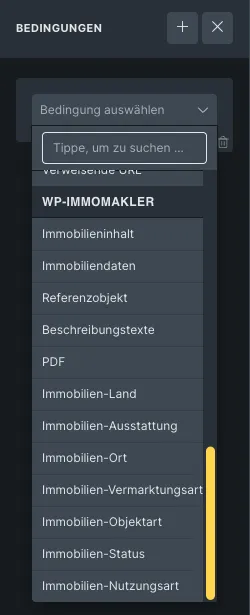
Additional conditions
Section titled “Additional conditions”| Condition | Description |
|---|---|
| Property content | Checks whether a specific kind of content is available or not available: images, floor plans, videos, virtual tours, documents, PDF, links, summary and description texts, features, energy certificate, map, contact person, and their photo |
| Property data | Checks whether a data field of the property or the contact person has a value, for example the base rent |
| Reference object | Checks whether the property is a reference object (yes / no) |
| Checks whether a PDF exposé is available | |
| Description texts | Checks whether a specific description text is available, including the summary |
In a Bricks Query Loop, the conditions each check the property of the current entry. WP-ImmoMakler offers the same conditions with the same checks in Elementor Pro and Divi 5.
CSS classes
Section titled “CSS classes”The following selectors are available for custom CSS adjustments:
| Selector | Description |
|---|---|
.brxe-immomakler-archive-content | Wrapper of the complete list view |
.brxe-immomakler-archive-loop | Wrapper of the results list |
.brxe-immomakler-single-content | Wrapper of the complete detail view |
.brxe-immomakler-definition-list | Wrapper of Property Data and Energy Certificate |
.brxe-immomakler-single-features | Wrapper of Features |
.brxe-immomakler-gallery | Wrapper of the image gallery |
.brxe-immomakler-map | Wrapper of the location map |
.brxe-immomakler-contact-form | Wrapper of the contact form |
.brxe-immomakler-videos | Wrapper of Videos |
.immomakler-feature-item | Individual feature item |
.immomakler-feature-icon | Icon of a feature |
.immomakler-feature-text | Text of a feature |
.immomakler-data-{key} | Data row by field name |
Preview property
Section titled “Preview property”In Bricks Builder, WP-ImmoMakler elements display real property data as a preview. Bricks has its own selection for this: in the Template Settings you can choose a specific property under Preview post. This selection takes priority over the global Preview property from WP-ImmoMakler → Settings → Theme Builder — the global setting only applies when no preview post is selected in Bricks.
Step-by-step guides
Section titled “Step-by-step guides”- Create Archive Template — Design a property list view with Bricks
- Create Single Template — Design a property detail view with Bricks
You might also be interested in
Section titled “You might also be interested in”- Settings: Theme Builder — Global preview property and priority order
- Divi Theme Builder
- Elementor Pro
- WPBakery Page Builder