

Gallery Block
With the Gutenberg block Property Gallery (immomakler/gallery) you embed only the image gallery of a property — independently of the full detail view. The block offers the same layout and design options as the Customizer gallery, but sets them per block instance. This way, different pages can show galleries styled differently.
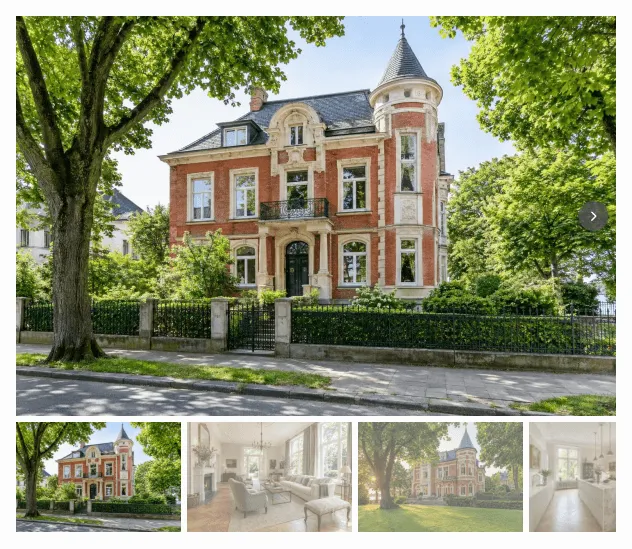
Requirements
Section titled “Requirements”- WordPress with the Gutenberg editor (from WordPress 5.0)
- WP-ImmoMakler (any edition)
Inserting the gallery block
Section titled “Inserting the gallery block”-
Edit a property or create a template
Open an existing property in the editor or create a block-based template for the Property post type (requires a block theme or the Site Editor).
-
Insert the block
Click the + symbol and search for Property Gallery, or navigate to the Widgets category. Insert the block.
-
Choose the image source
In the Property side panel, set which property the images come from (see the next section).
-
Configure the gallery
Adjust layout, slideshow or static options, aspect ratios, sizes, and design in the side panels. The editor preview updates live.
-
Save and publish
Save or update the page. The gallery is now available on the frontend.
Choosing the image source
Section titled “Choosing the image source”The Property panel determines which images the block displays.
| Option | Description |
|---|---|
| Source → Current property (loop) | The block shows the images of the property in whose context it is rendered — for example in the template for the Property post type or within a query loop (default). |
| Source → Manual selection | You select a specific property. A selection field appears in which you search by the property title or the external property ID (objektnr_extern). |
| Image selection | Restricts which images are shown: All images, Floor plans only, or Without floor plans. |
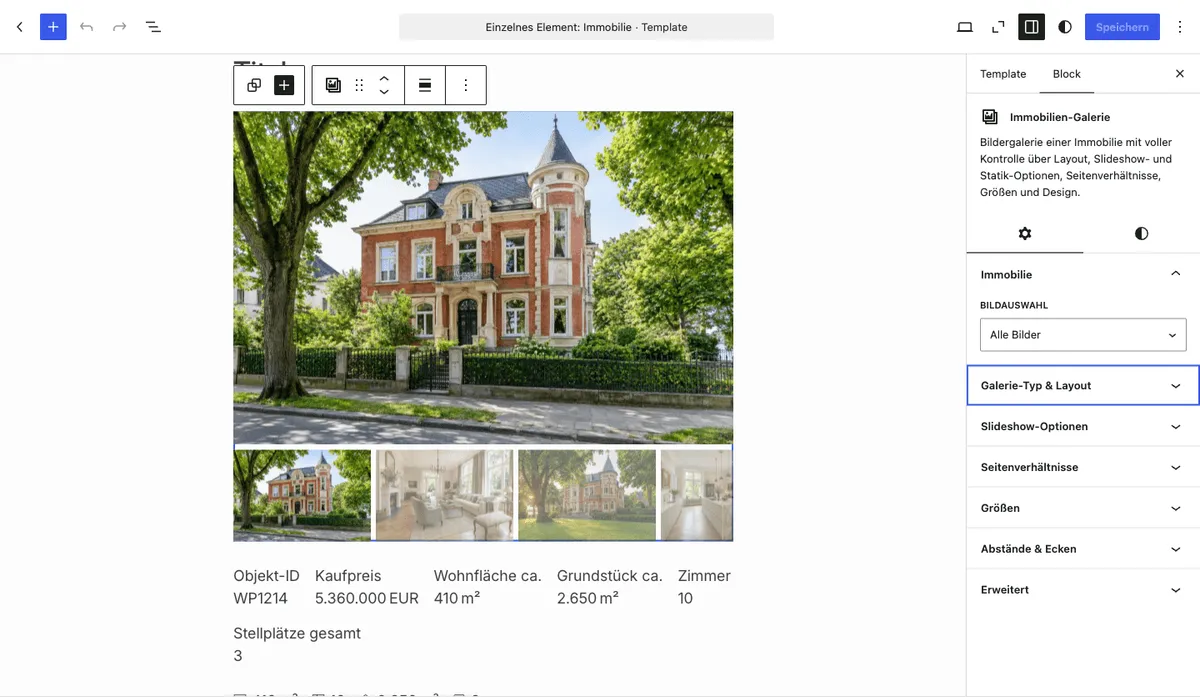
Gallery type and layout
Section titled “Gallery type and layout”In the Gallery type & layout panel you choose between two basic display modes:
| Gallery type | Description |
|---|---|
| Slideshow (Swiper) | Interactive slideshow with a thumbnail bar, carousel and autoplay options. For details on the layouts, see Image gallery: Slideshow. |
| Static (grid) | Static grid of a main image and thumbnails, opened via lightbox. For details on the layouts, see Image gallery: Static image. |
Depending on the chosen gallery type, the matching layout options appear, along with the Slideshow options or Static options panel.
The settings panels
Section titled “The settings panels”The block bundles all options in the following side panels. The meaning of the individual options is identical to the Customizer gallery — the linked pages describe them in detail.
| Panel | Controls | Details |
|---|---|---|
| Property | Image source and image selection | (see above) |
| Gallery type & layout | Slideshow vs. static and the layout | Slideshow · Static |
| Slideshow options | Autoplay, transition effect and duration, arrow buttons, thumbnails on mobile devices | Slideshow |
| Static options | Aspect mode, behaviour with image overflow, hover animation, number of thumbnails | Static |
| Grid (static layout) | All images as equally sized tiles without a main image: columns (maximum), minimum tile width, tile aspect ratio, image fit (Crop or Show in full) and image title as caption. Combined with the “floor plans only” image selection, this produces a floor plans box like the WP-ImmoMakler skin’s | Static |
| Mosaic (static layout) | Blocks of four photos each with two large and two small tiles, mirrored from block to block, without a main image: block aspect ratio, row height distribution and limit number of images. Replaces the former Photo Gallery “Grid” block | Static |
| Aspect ratios | Aspect ratio of the main and thumbnail images | Slideshow |
| Sizes | Height of the thumbnail bar, width of the thumbnail column, carousel or fixed gallery height | Slideshow |
| Spacing & corners | Spacing between thumbnails, spacing between main images, corner rounding, colour of the arrow buttons | Slideshow |
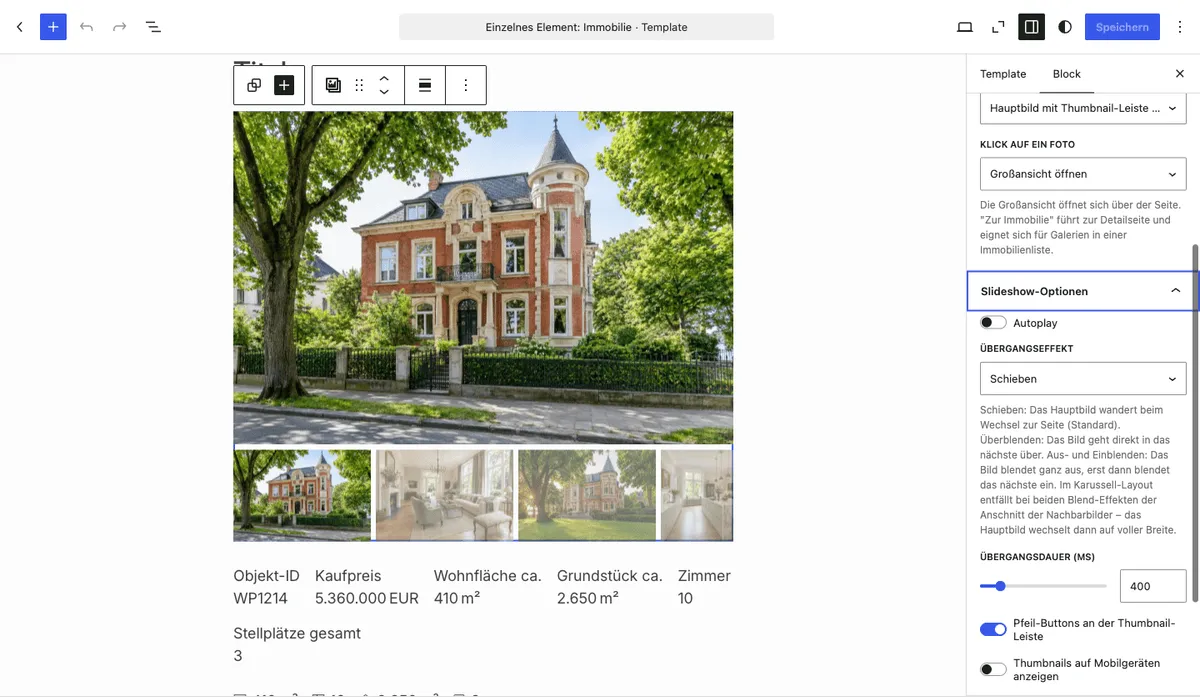
Previewing and testing
Section titled “Previewing and testing”The Gutenberg editor shows a server-side rendered live preview of the gallery directly in the editor. To check the final result:
- Save or publish the page.
- Open the page on the frontend.
- Check the slideshow navigation or lightbox and the display on mobile devices.
For developers
Section titled “For developers”The block uses the same gallery library as the detail page. Its behaviour can be customised via filter hooks and CSS variables — see Gallery library: Customising. Outside the block editor, the gallery shortcode is also available.