

Impreza and Salient
Impreza and Salient are the most widespread themes that ship with WPBakery. With both, you design the list and detail view of your properties using the WP-ImmoMakler elements for WPBakery. The only difference is how the layout gets onto the property pages:
| Theme | Detail view | List view |
|---|---|---|
| Impreza | Template page or Impreza page template | Template page or Impreza page template |
| Salient | Template page | Template page |
Impreza
Section titled “Impreza”With its page templates, Impreza has its own template system that assigns page layouts to a post type and its archives. You therefore have two approaches. Both use the same WP-ImmoMakler elements.
Approach 1: Template pages
Section titled “Approach 1: Template pages”A template page is a normal WordPress page that you design with WPBakery and register as the list or detail view in the WP-ImmoMakler Template panel. The guides Create Archive Template and Create Single Template describe this step by step.
Choose this approach if you
- want to use different layouts for different properties, for example one for houses and one for apartments — this is only possible with the conditions of a template page,
- don’t want to change anything in Impreza’s theme options: a template page applies immediately to the list view, all category views and all filtered addresses.
Approach 2: Impreza page templates
Section titled “Approach 2: Impreza page templates”If you already manage your website’s layouts through Impreza’s page templates, design the property pages the same way.
-
Turn off the plugin takeover
In your website’s backend (wp-admin), disable the Plugin handles list and detail views option under WP-ImmoMakler → Settings → Theme Builder. As long as it is active, WP-ImmoMakler renders the property pages itself and the Impreza page templates don’t come into play.
-
Create a page template for the detail view
Under Templates → Page Templates, create a new page template, for example “Property Detail View”. Insert the Property details element or build the view from the individual elements, as described under Create Single Template.
-
Create a page template for the list view
Create a second page template, for example “Property List View”, and insert the Property Listview element.
-
Assign the detail view
Under Impreza → Theme Options → Page Layout, in the Properties section, select your detail view under Page Template and save the changes.
-
Assign the list view — for all categories too
Under Impreza → Theme Options → Archive Layout, in the Archive: Properties section, select your list view under Page Template.
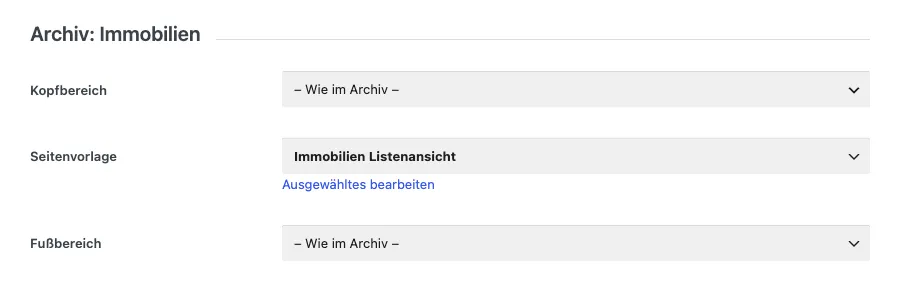
Also select the same page template in each of the following sections:
- Property types
- Property countries
- Property marketing types
- Property usage types
- Property locations
- Property features
- Property status
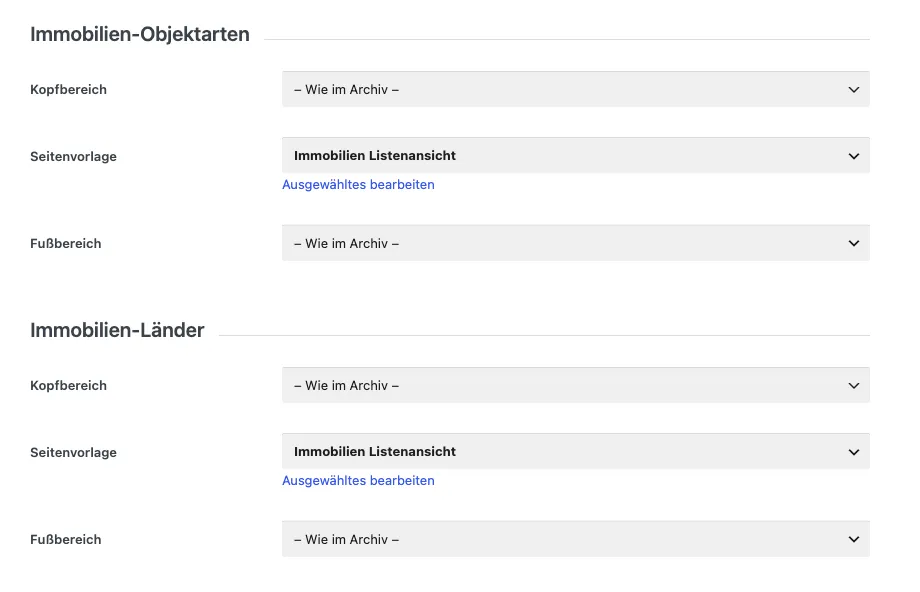
Save the changes.
Salient
Section titled “Salient”Salient offers no template system for the pages of a post type or its archives. Design the list and detail view with template pages instead, as described under Create Archive Template and Create Single Template.
Salient’s Global Sections are no substitute for this. They insert a section before or after the content of a page, but do not replace the theme’s layout:
- On the detail view, Salient still outputs its own post header with the title and the post navigation.
- There is no suitable position for the list view: the “Blog Archive Loop” location styles the blog’s archives, not the property list view.
Page title
Section titled “Page title”Depending on its settings, your theme shows the page title above the content of a page — on a template page, the property’s title. Salient does this on the detail view by default. The Property details and Property Listview elements additionally output their own heading. If the title appears twice, disable the Show heading option in the element or hide the page title in your theme’s settings.