

Search Form Block
With the Property search form Gutenberg block PLUS (immomakler/archive-search-form) you output the WP-ImmoMakler search form on any page — for example on your homepage above a teaser. A search takes visitors to the list view with the matching properties.
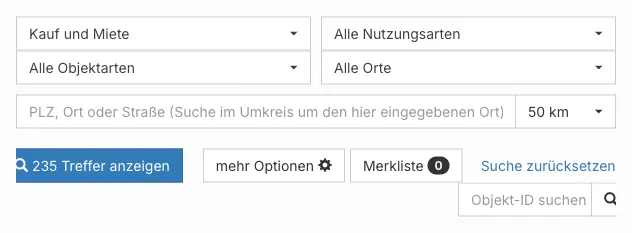
The block outputs the same form as the [immomakler-search-form] shortcode, see Shortcodes.
Requirements
Section titled “Requirements”- WordPress with the Gutenberg editor
- WP-ImmoMakler Plus edition
Unlike the blocks for the detail view, the search form does not need a property in context. You can use it on any page, in a post, or in a template.
Inserting the block
Section titled “Inserting the block”-
Open the page
Open the page on which the search form should appear in the block editor — or, in the Site Editor, the template, such as the homepage.
-
Insert the block
Click the + icon and search for Property search form, or navigate to the Widgets category. Insert the block.
-
Choose the number of columns
In the sidebar under Display, set how many columns the search fields are spread across.
-
Save
The editor shows a preview of the form. The dropdowns are shown in simplified form there; on the frontend they appear just as they do in the list view.
Options
Section titled “Options”| Panel | Option | Default | Description |
|---|---|---|---|
| Display | Number of columns | 4 | Spreads the search fields across 1 to 4 columns. For a narrow sidebar choose 1, for a wide content column 3 or 4. |
Set the block’s colors, typography, and spacing in the Design tab.
You might also be interested in
Section titled “You might also be interested in”- Configuring the Search Form — set up search fields, radius search, and loading of results
- Create Archive Page — set up the list view with the Gutenberg block
- Property Map — show the properties on a map
- Shortcodes — embed the search form with a shortcode