

Create Archive Template
With Bricks Builder you can design the property list view (archive) to your exact specifications. You have two approaches: the List View (complete) for a quick start, or the Results List for a custom layout with more control.
Requirements
Section titled “Requirements”- Bricks Builder (active theme)
- WP-ImmoMakler (any edition)
Option A: List View (complete)
Section titled “Option A: List View (complete)”The complete element renders the entire property list including the search form, map, and pagination. It is the right choice when you want to use WP-ImmoMakler’s standard presentation and only need to control its placement within the Bricks template.
-
Create a new template
Navigate to Bricks > Templates and create a new template of type Archive.
-
Set conditions
Open the template settings and set the Post Type to
immomakler_objectunder Conditions. This applies the template to all property archives. -
Insert the element
Open the Bricks editor and add the List view (complete) element from the WP-ImmoMakler category. It renders the complete property list with search form, map view, and pagination.
-
Save and test
Save the template and visit a property overview page on the frontend.
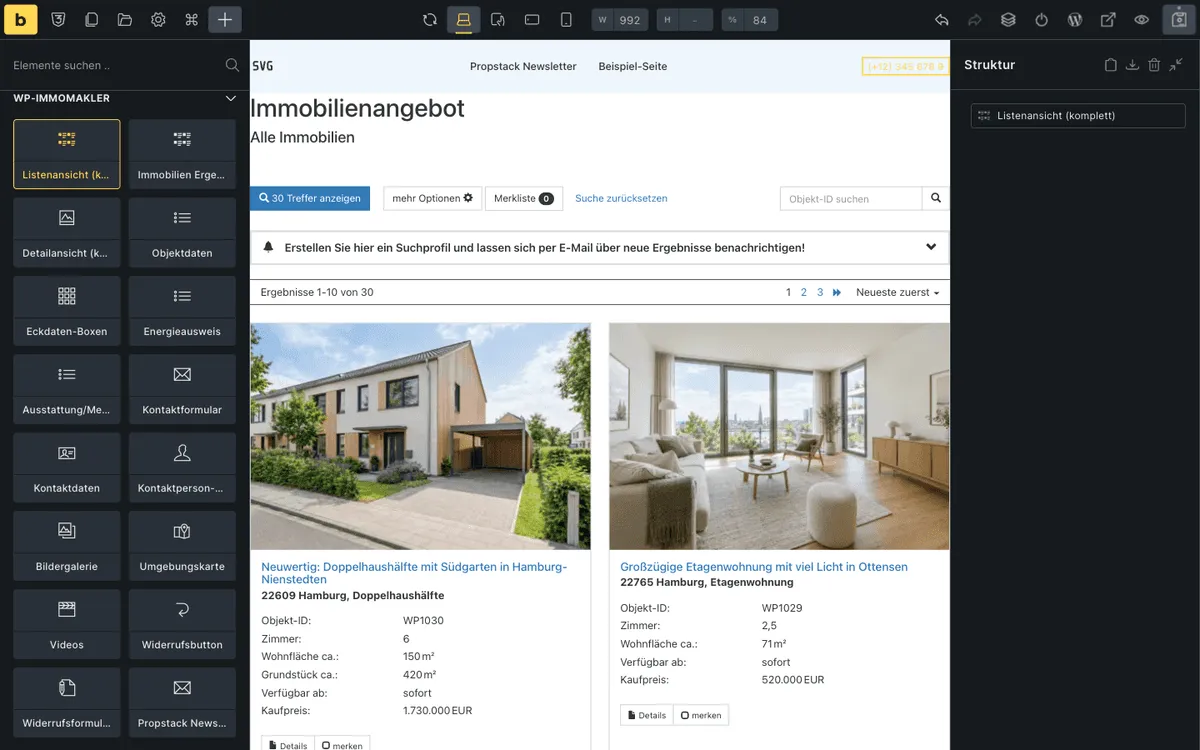
Option B: Custom layout with Results List
Section titled “Option B: Custom layout with Results List”For more control over the layout, use the Real estate results list element. It outputs only the property tiles — you then add the search form and map separately via dedicated Bricks elements or shortcodes.
-
Create a new template
Create a new Bricks template of type Archive and set the condition to Post Type
immomakler_object. -
Build the page structure
Create the desired page structure with sections and columns — for example, a sidebar for the search form and a main area for the results.
-
Insert the Results List
Add the Real estate results list element from the WP-ImmoMakler category to the main area. It displays the property tiles without the search form and map.
-
Add the search form and map
Optional: Embed the WP-ImmoMakler search form and map view in your sidebar or header area via shortcodes.
-
Save and test
Save the template and check the result on the frontend.
Option C: Custom property cards with a Query Loop
Section titled “Option C: Custom property cards with a Query Loop”With a Bricks Query Loop you design each property card yourself — from the Gallery, the Key Data Boxes, headings, and text with WP-ImmoMakler’s Dynamic Tags.
-
Create the loop
Insert a Block, enable the Query Loop, and under Query choose the Is main query option. The loop then shows the properties of the overview being visited in the order set in WP-ImmoMakler, and takes the search form selection into account. You set how many properties a page shows in the backend of your website (wp-admin) under Appearance → Customizer → WP-ImmoMakler → Property List View with Number of properties per page.
-
Design the card
Place the card’s elements inside the block with the Query Loop — for example the Gallery with Click on a photo: View property, a heading with
{post_title}, linked to{post_url}, and the Key Data Boxes. Use the Property content and Reference object conditions to show hints such as “Video” or “Reference” only on the matching properties. -
Add pagination
Insert the Bricks Pagination element below the grid.
PLUS For the search form to update the results without reloading the page and to load further properties on scroll, give the block containing the Query Loop the CSS class properties, the block with the Query Loop the class property, and the pagination the class pages-nav under Style → CSS → CSS Classes.
Available archive elements
Section titled “Available archive elements”| Element | Description |
|---|---|
| List view (complete) | Complete property list with search, map, and pagination |
| Real estate results list | Property tiles only (without search form and map) |
Using conditions in the archive
Section titled “Using conditions in the archive”Conditions let you control the display of individual elements in the archive template based on property data. The conditions appear under the WP-ImmoMakler group:
- Property content: show hints such as “Video” or “360° tour” only on properties with that content
- Reference object: label reference objects
- Marketing type: Different display for properties for sale vs. for rent
- Property type: Different display for apartments vs. plots
- Status: Special labelling for sold or rented properties
Dynamic Tags in the list view
Section titled “Dynamic Tags in the list view”When you create a custom loop layout in Bricks, you can use Dynamic Tags to display property data in any Bricks element:
{immomakler_value:kaufpreis}— Price in a text element{immomakler_value:wohnflaeche}— Living area{immomakler_value:anzahl_zimmer}— Number of rooms{immomakler_value:plz} {immomakler_value:ort}— Postcode and city{immomakler_property_images}— Property photos as an image source
Preview and testing
Section titled “Preview and testing”Bricks provides a live preview directly in the editor. To test the template with real property data:
- For the Query Loop to already show properties in the editor, choose “Archive (posts)” as the Content Type and the properties as the Post Type under Populate Content in the template settings.
- Save the template.
- Open a page on the frontend that displays your property list (e.g., the property overview page).
- Verify that the list view is rendered correctly.
You might also be interested in
Section titled “You might also be interested in”- Bricks Builder Overview — All elements, Dynamic Tags, and conditions at a glance
- Create Single Template — Design the property detail view with Bricks
- Create Archive Template (Elementor Pro) — The same guide for Elementor Pro
- Create Archive Template (Divi Theme Builder) — The same guide for Divi