

PDF Expose / PDF Print View
WP-ImmoMakler automatically generates a print-optimized PDF exposé for each property. This feature is available from the PLUS license onward and is enabled by default. The PDF can be accessed by appending ?pdf to the URL of the detail view, or via the “Print View (PDF)” button that is displayed on the detail page by default.
Accessing the Settings
Section titled “Accessing the Settings”Navigate in the backend of your website (wp-admin) to WP-ImmoMakler → Settings → PDF Print View.

Customization Options
Section titled “Customization Options”
The following elements can be customized directly in the settings:
| Element | Description |
|---|---|
| Page margins | Left and right in millimetres |
| Fonts | Separate selection for title heading, headings, body text, and footer (12 Google Fonts available; custom fonts can be added, see Adding Custom Fonts) |
| Font sizes and weights | Independently adjustable per area |
| Colors | Title heading, headings, and body text |
| Header graphic | Standard and first-page variants, adjustable height and width, full-width option, alignment (left/centre/right); as long as no logo has been uploaded, a notice is displayed in the backend |
| Footer graphic | Standard and first-page variants |
| Footer text | Left, center, and right columns |
| Footer border and background color | Footer styling |
| QR code in the footer | Show/hide, color, and maximum size (see QR codes) |
| Maximum number of gallery images | Default 60 – controls how many property photos appear on the gallery pages |
| Contact person in the exposé | Can be shown before or after the images |
| Pre-load PDF cache | PDF is generated when the property is imported |
Header Graphic Alignment
Section titled “Header Graphic Alignment”The Header Graphic Alignment setting determines whether the logo in the PDF header is aligned left, centre, or right. You can find the option in the backend of your website (wp-admin) under WP-ImmoMakler → Settings → PDF Print View → Header, directly below the “Force header graphic full-width” option.
| Value | Description |
|---|---|
| Left | Logo is left-aligned |
| Centre | Logo is centred (default value) |
| Right | Logo is right-aligned |
The alignment applies both to the header on regular pages and to a different first-page graphic, if one is configured. The default value Centre matches the previous behaviour.
Videos and Virtual Tours in the PDF
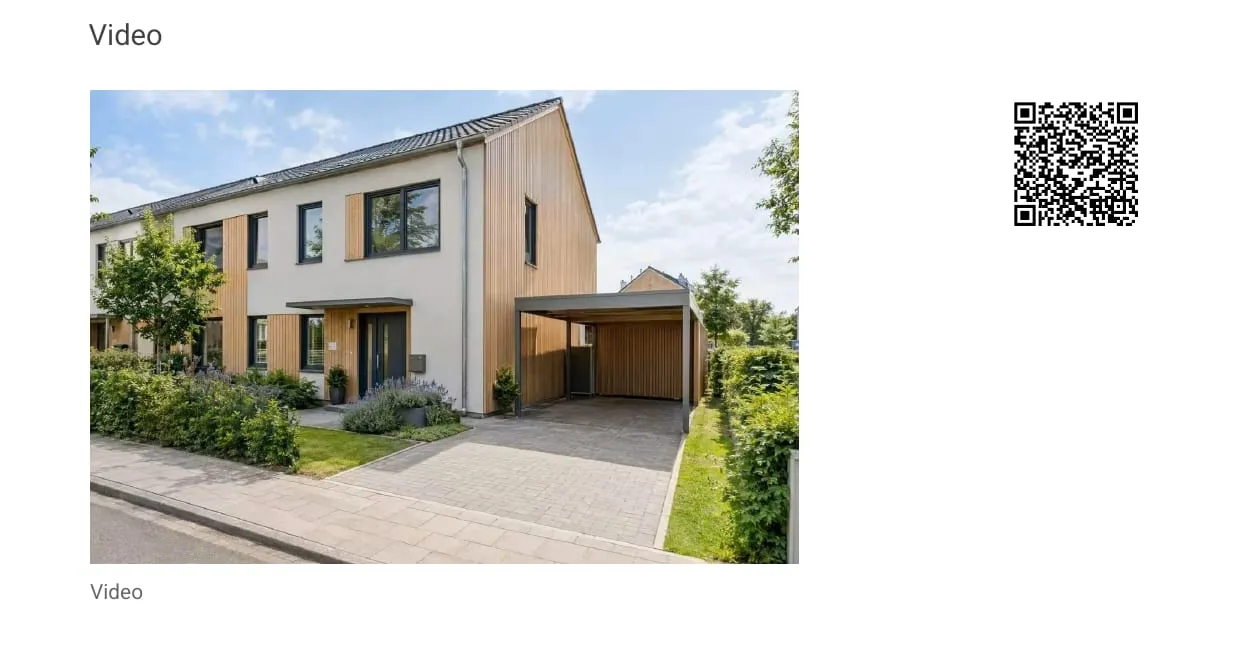
Section titled “Videos and Virtual Tours in the PDF”The PDF exposé automatically includes a dedicated section after the property photos and floor plans for the property’s videos and virtual tours. The heading adapts to the available media (“Videos”, “Virtual Tours”, or “Videos & Virtual Tours”); if neither videos nor tours are stored, the section is omitted entirely.
Each entry shows:
- the preview image of the video or tour – the same server-side cached preview image also used by the tiles in the detail view. If no preview image can be determined, only the linked caption is shown instead.
- a QR code that links directly to the video or tour. Its colour follows the QR Code Color setting from the PDF settings.
The preview image, caption, and QR code are clickable in the digital PDF and open the video or tour in the browser. Anyone holding the printed exposé simply scans the QR code with their smartphone – so property videos and 360-degree tours are just a tap away, even on paper.
PDF Cache and Speed
Section titled “PDF Cache and Speed”Every generated PDF is cached in wp-content/cache/immomakler/pdf/pdfs/ so that subsequent requests can be served immediately. The cache is automatically cleared when you save the PDF settings or when the metadata of a property changes through an import. In addition, a cron job runs once a week to clear the entire PDF cache.
Immediately after each cache clear, WP-ImmoMakler also warms up the Dompdf font cache. This helps avoid rare PHP errors during concurrent PDF generation — for example, when an OpenImmo import with “Pre-load PDF cache” enabled generates multiple PDFs in quick succession. If the warm-up fails, it is recorded in a log file immomakler-pdf-… in the import directory — the actual PDF retrieval continues to work; Dompdf will then write the font data itself on first request.
Memory and File Size Optimization
Section titled “Memory and File Size Optimization”From version 5.60 onwards, gallery photos are embedded in the PDF at 900×900 px instead of their original size, while floor plans remain at full resolution so that labels stay legible. This reduces both the memory usage during PDF generation (preventing “Allowed memory size exhausted” errors for properties with many photos) and the file size of the generated PDFs — resulting in faster downloads for prospective buyers.
AVIF Images
Section titled “AVIF Images”On installations that automatically convert images to the AVIF format (in the backend of your website (wp-admin) under WP-ImmoMakler → Settings → Import, option Convert property photos to set to AVIF – smallest files), Dompdf does not access the AVIF files directly — Dompdf does not currently support AVIF. WP-ImmoMakler falls back automatically to the original uploaded file (usually JPG or PNG) in this case. If no non-AVIF variant is available, the image is converted to JPEG on-the-fly (provided the PHP extension GD or Imagick can read AVIF) and cached for future requests.
Customizing Data Fields on the Title Page
Section titled “Customizing Data Fields on the Title Page”Using the immomakler_pdf_quick_details_keys filter, developers can control which fields appear on the title page of the PDF:
add_filter( 'immomakler_pdf_quick_details_keys', function () { return [ 'wohnflaeche', 'kaufpreis', 'gesamtbelastungbrutto', ];} );
Further Filters for Developers
Section titled “Further Filters for Developers”| Filter | Purpose |
|---|---|
immomakler_generate_pdf | Boolean gate function – return false to suppress PDF generation for an individual property |
immomakler_pdf_file_name | Customize the filename on download |
immomakler_pdf_builder | Replace the Dompdf-based builder with a custom implementation |
immomakler_pdf_dompdf_options | Override the options passed to Dompdf (e.g. re-enable isHtml5ParserEnabled if you use a custom, non-XHTML-compliant template) |
immomakler_pdf_image_size_1col / immomakler_pdf_image_size_2col | Registered image size for the gallery in 1- or 2-column layout |
immomakler_pdf_image_size_floorplans | Registered image size for floor plans (default: full) |
immomakler_pdf_template_image_size | Registered image size for header/footer graphics |
immomakler_pdf_title_image_size | Registered image size for the title image |
immomakler_pdf_images_posts / immomakler_pdf_floorplans_posts | Modify the list of gallery or floor plan attachments before embedding |
immomakler_pdf_fonts | Programmatically add or modify the fonts selectable in the PDF (the helper functions above build on this) |
immomakler_pdf_html_additional_css | Inject additional CSS into the PDF template |
immomakler_pdf_html_title_page_html / immomakler_pdf_html_body_html | Directly replace the HTML of the title page or main body |
immomakler_pdf_headline_images | Heading of the gallery section |
immomakler_pdf_headline_contactperson | Heading of the contact person section |
immomakler_pdf_headline_media_links | Heading of the “Videos & Virtual Tours” section |
immomakler_pdf_media_link_items | Modify the list of video/tour entries in the PDF (remove, add entries, or adjust captions) |
immomakler_pdf_data_label_features | Label of the “Features / Characteristics” row in the property data table |
All these filters are available from WP-ImmoMakler Plus onwards.
Hiding the PDF Download Button
Section titled “Hiding the PDF Download Button”To disable the PDF download button on the detail view, navigate in the backend of your website (wp-admin) to WP-ImmoMakler → Customizer → Detail View and disable the print view option there. The PDF itself remains accessible via the URL with ?pdf appended — the button is merely the visible link.
Adding Custom Fonts PLUS
Section titled “Adding Custom Fonts ”By default, the four font selection fields offer 12 Google Fonts. You can extend this list — with purchased (licensed) fonts as well as additional Google Fonts. The added fonts then appear in the selection fields under WP-ImmoMakler → Settings → PDF Print View — grouped in their own “Custom Fonts” group above the included “Standard Fonts” — and can be selected separately for title heading, headings, body text, and footer.
Registration is done via a small code snippet, ideally in the functions.php of your (child) theme or in a mu-plugin. The only requirement is that it runs before the init hook — the example hook after_setup_theme fulfils this.
Purchased Font (Local Font File)
Section titled “Purchased Font (Local Font File)”Store the font files somewhere inside your wp-content directory — ideally under wp-content/uploads/fonts/. This location survives plugin and theme updates and is within the area from which the PDF engine (Dompdf) is permitted to read files.
add_action( 'after_setup_theme', function () {  if ( ! function_exists( 'immomakler_register_pdf_font' ) ) {    return;  }
  $dir = WP_CONTENT_DIR . '/uploads/fonts/';
  immomakler_register_pdf_font( 'eurostile', 'Eurostile', [    'normal' => $dir . 'EurostileNormal.ttf',    'bold'   => $dir . 'EurostileBold.ttf',    'italic' => $dir . 'Eurostile-Oblique.ttf',  ] );} );
The first value (eurostile) is a freely chosen, unique key; the second (Eurostile) is the label displayed in the font selection fields in the PDF settings. If you provide the matching font file for normal, bold, and italic, bold and italic text will automatically be rendered using the correct font — otherwise the PDF engine produces an artificial (slightly distorted) bold/italic rendering.
Important notes:
- The PDF engine reads only TTF and OTF files. Web formats such as WOFF2 and EOT are not supported — use the
.ttfor.otfvariant of your font. - The font files must be located within
wp-content(or the WordPress directory or uploads directory). Paths outside this area are ignored for security reasons. - Please check the licence of your font: glyphs are embedded in every generated PDF, which not every font licence permits.
- Generate a PDF once after adding the font so that the font metadata is cached.
Additional Google Fonts
Section titled “Additional Google Fonts”Google Fonts do not require local files — the PDF engine downloads them server-side when generating. From a data protection standpoint (GDPR), this is unproblematic, as this request originates from the server, not the browser of your visitors.
add_action( 'after_setup_theme', function () {  if ( ! function_exists( 'immomakler_register_pdf_google_font' ) ) {    return;  }
  immomakler_register_pdf_google_font( 'figtree', 'Figtree', 'Figtree' );} );
The parameters are:
- The first value (
figtree) is a freely chosen, unique key. - The second value (
Figtree) is the label displayed in the font selection fields in the PDF settings. - The third value (
Figtree) is the exact family name at Google Fonts (with spaces if applicable, e.g.Playfair Display).
By default, font weights 400 (normal) and 700 (bold) are requested; a different selection can be passed as a fourth parameter, e.g. [ 400, 600, 700 ].
Availability
Section titled “Availability”The PDF print view is included from the PLUS license onward. If you are currently using the BASIC license, you can upgrade to PLUS at any time to unlock this feature. Contact WP-ImmoMakler support if you are interested.