

onOffice WordPress Plugin: Import Properties Automatically
WP-ImmoMakler is the WordPress plugin for onOffice: it automatically transfers your properties from onOffice to your WordPress website via the OpenImmo interface.
Setting Up the OpenImmo Export in onOffice
Section titled “Setting Up the OpenImmo Export in onOffice”Connecting onOffice to WP-ImmoMakler is done via the free OpenImmo interface by default; the onOffice API is not required for this. If your onOffice version includes API access, you can additionally use the API — either as a supplement for reference properties alongside the OpenImmo interface, or as a complete replacement that transfers all properties, including reference properties and development projects.
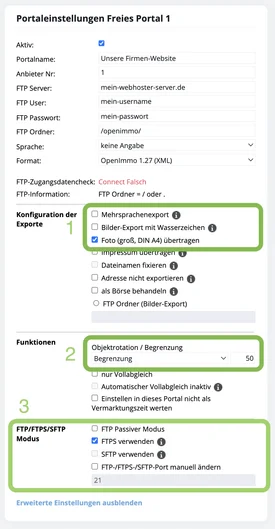
Navigate in onOffice to Extras > Settings > Basic Settings > Portals and select a “Free Portal”. Enter the FTP or SSH credentials for your web server:
- Portal name: A descriptive name, e.g. “Website” or “WP-ImmoMakler”
- Provider no.: Any number (typically “1” if you are the sole provider)
- FTP folder: By default
/openimmo/in the WordPress root directory. For subdirectories, enter the full path, e.g./clickandbuilds/app/wordpress_1/openimmo/

Advanced Settings
Section titled “Advanced Settings”Additional options are available under “Show advanced settings”:
- Connection type: SSH/SFTP, FTPS or FTP/TLS — depending on the capabilities of your web host
- Multi-language export: Enable this option if you want to transfer multilingual properties
- Watermark: Disable for your own website
- Image quality: Select “Photo (large, DIN A4)” for best quality
- Limit: Adjust the limit to match your license size (30, 50, 100, 250 etc.)
Running a Full Portal Sync
Section titled “Running a Full Portal Sync”A full sync transfers all your properties from scratch and is recommended after the initial setup or when properties are missing from the website.
Navigate to Actions > Property Actions > Full Portal Sync, select “Full sync” and your website, then click “Next”.
Note: If the “consider stand_vom” option is enabled, only properties with a more recent modification date will be transferred. Properties not transmitted during this sync will be automatically deleted from the website by WP-ImmoMakler.


Transferring Reference Properties
Section titled “Transferring Reference Properties”Already brokered properties can be displayed as references on your website — without sensitive data such as prices or other property details.
The corresponding “Reference” field can be found in onOffice in the Marketing tab under “Own website”. You have two options for transferring this to your website.

Via the OpenImmo Interface
Section titled “Via the OpenImmo Interface”For the “Reference” field to be transferred with the regular export, the transfer of the so-called marketing fields must be enabled in onOffice. Contact the onOffice technical support team for this (+49 241 44686-122). Activation is free of charge.
Via the onOffice API
Section titled “Via the onOffice API”Alternatively, WP-ImmoMakler retrieves the reference properties directly via the onOffice API. This means no activation by onOffice support is required. This requires the API access to be included in your onOffice version; your other properties continue to arrive via the free OpenImmo interface.
In onOffice, under Extras > Settings > Basic Settings > API, generate a token and a secret for an API user. Enter these in the backend of your website (wp-admin) under WP-ImmoMakler > Software/portals > onOffice and enable “Retrieve properties via the onOffice API” there. Leave “What should be transferred?” set to “Only reference properties”.
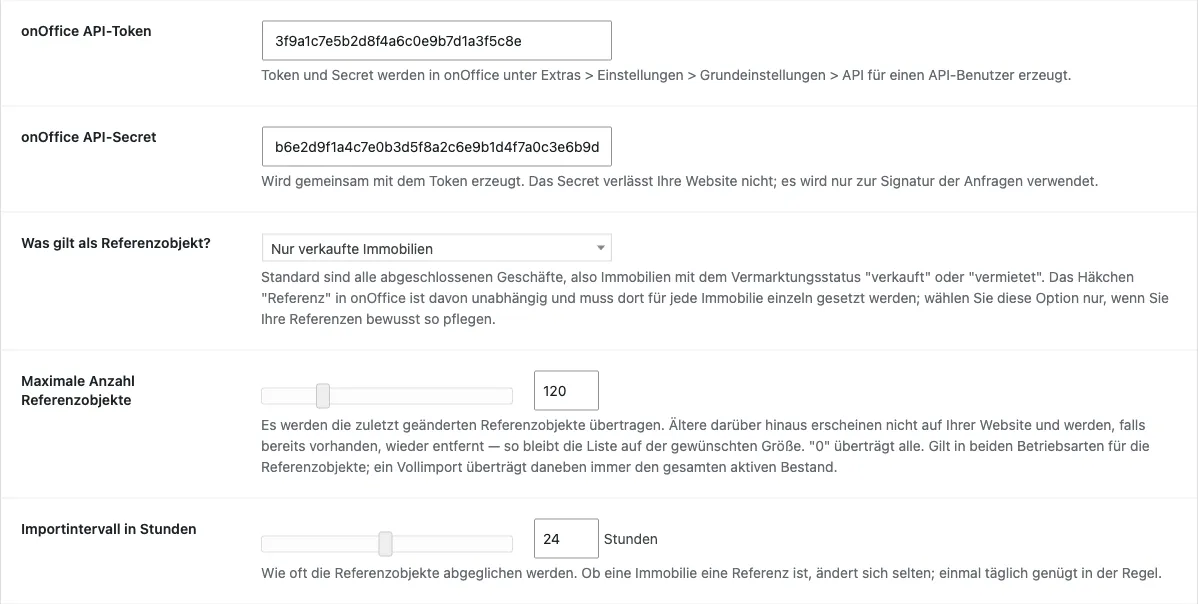
Further settings on this tab:
- What counts as a reference property? — by default, all completed deals, i.e. properties with the marketing status “sold” or “let”. Alternatively, only sold properties, or only those for which the “Reference” checkbox is set in onOffice. This checkbox is independent of the marketing status and must be set individually for each property in onOffice; choose this option only if you deliberately maintain your references this way.
- Maximum number of reference properties — 50 by default. The most recently changed reference properties are transferred; older ones beyond that do not appear on your website and, if already present, are removed again. This keeps the list at the desired size. “0” transfers all.
- Import interval in hours — how often the reference properties are synced. Whether a property is a reference rarely changes, so once a day is usually sufficient.
- Associated OpenImmo provider ID — the provider ID under which your properties are already transferred via the OpenImmo interface. If your website has only one transfer, it is assigned automatically. If several real estate offices are managed on one website, select the appropriate one here.
- Only properties released for your own website — transfers only properties for which the “veröffentlichen” (publish) checkbox under “Eigene Internetseite” (own website) is ticked in onOffice, on the Vermarktung (marketing) tab. This applies to reference properties as well as, in the full import, to the active portfolio. Only enable the option if you maintain the checkbox for every property that should appear on your website. If it is not set on any property, the sync aborts with an error message instead of removing your properties from the website. A filter entered under “onOffice filter ID” continues to determine the reference properties unchanged.
- onOffice filter ID — optional. If you have created your own property filter in onOffice, enter its ID here. The filter then replaces the selection under “What counts as a reference property?”.
If a reference property is already present on your website via the OpenImmo interface, WP-ImmoMakler marks this existing property as a reference instead of creating it a second time. Properties not transferred via OpenImmo are created by WP-ImmoMakler itself. If a property becomes available again in onOffice, it reappears as a regular property, or is removed from your website.
The property data is transferred to the same extent as via the OpenImmo interface: property category and type, address and geo coordinates, areas, prices, features, condition, energy certificate, texts, images, documents and links, as well as the marketing status and the flags from the onOffice “Own homepage” section (“sold”, “reserved”, “top offer”, “property of the day”, “commission-free”). This results in the same status terms as with the OpenImmo import.
In addition, the API transfers the plot (Flur), parcel number (Flurstück), cadastral district (Gemarkung) and flat number, site occupancy index (GRZ) and floor area index (GFZ), development costs, ground rent, flat-rate rent, other costs, the buyer’s commission (gross), the “available from” date, and the distances to the motorway, nursery, primary school, secondary school (Realschule), grammar school (Gymnasium) and town centre. Empty fields are not transferred.
Other onOffice fields for which OpenImmo has no field of its own are transferred by the API as user-defined fields. To display them on your website, enter the relevant meta key with a label in the backend of your website (wp-admin) under WP-ImmoMakler > Settings > Custom Fields:
| onOffice field | Meta key |
|---|---|
| Commercial area | flaechen-user_defined_simplefield-gewerbeflaeche |
| Ancillary area | flaechen-user_defined_simplefield-nebenflaeche |
| Ground lease term (years) | preise-user_defined_simplefield-erpachtdauer_yrs |
| Ground lease remaining term | preise-user_defined_simplefield-erbpacht_restlaufzeit |
| Can be built on with | zustand_angaben-user_defined_simplefield-bebaubar_mit |
| Facade | zustand_angaben-user_defined_simplefield-facadetype |
| Access type | verwaltung_objekt-user_defined_simplefield-entrytype |
Selection fields such as “Can be built on with” appear with their labels from onOffice.
Three entries in onOffice control how the property appears on your website:
- Transfer street without house number – If the checkbox is ticked, the street is shown without the house number. The exact coordinates are then not transferred, so that the map does not point at the building. If geocoding is set up, WP-ImmoMakler locates the property by street and town instead; otherwise no map is shown for it.
- Parent property (Stammobjekt) – A property flagged as a parent property is created as a development project, even if no units have been assigned to it in onOffice yet.
- Timum booking link – A link entered here appears with the property as a “Book a viewing online” link.
The API also transfers individual fields that you created yourself in onOffice, as soon as you adopt them in the backend of your website (wp-admin) under WP-ImmoMakler > Settings > Custom Fields. How to do this is described in Custom fields.
As the contact person for a reference property, WP-ImmoMakler uses the property’s assigned agent as stored in onOffice, including salutation, position, phone numbers, address, and photo. For the API to release the user data, enable the “Read user data via API” option in onOffice under Extras > Settings > Users, on the “API user” tab, under “Rights”. If this permission is missing or no agent is assigned to a property, WP-ImmoMakler uses your website’s name and the email address stored under WP-ImmoMakler > Settings > Contact form.
Use the “Retrieve current reference properties from onOffice now” button under WP-ImmoMakler > Import to start the sync immediately, without waiting for the interval.
Transferring All Properties via the API
Section titled “Transferring All Properties via the API”Instead of just the reference properties, WP-ImmoMakler can also retrieve your entire property portfolio via the onOffice API. The API then replaces the OpenImmo interface.
For most websites this is not necessary: the OpenImmo interface is free of charge and transfers your properties reliably. The full import becomes interesting if you already have onOffice API access and want to do without FTP credentials on your web server.
You can find the setting in the backend of your website (wp-admin) under WP-ImmoMakler > Software/portals > onOffice next to “What should be transferred?”.
The full import transfers all active properties plus your reference properties — using the same criterion and in the same number as with “Only reference properties”. The “Maximum number of reference properties” setting therefore applies in both modes; the active portfolio is never limited. Active properties are those with the status “Active” in onOffice; archived properties and those in acquisition stay in onOffice. If you also want to transfer only the properties released for your website, enable the option “Nur für die eigene Website freigegebene Immobilien” (German label, not yet translated; see above).
Development projects arrive together with their units. WP-ImmoMakler determines which property is the parent property and which units belong to it from the property relationship in onOffice (property → sub-units), not from the property ID. This also applies to reference properties: a sold unit remains assigned to its project even if the parent property itself is still being marketed.
Important: Only One Transfer Method
Section titled “Important: Only One Transfer Method”Please disable the portal transfer in onOffice before activating the full import, and then confirm this in the settings with “Portal transfer in onOffice is disabled”.
If both methods run at the same time, they deliver the same properties and overwrite each other: your properties would be read in from scratch on every run, images included. WP-ImmoMakler checks for this and does not run the full import as long as OpenImmo transfers are still arriving — you then receive a notice naming the affected provider ID.
Your Existing Properties Are Preserved
Section titled “Your Existing Properties Are Preserved”On the first full import, WP-ImmoMakler adopts the properties already transferred via OpenImmo: they are updated rather than created a second time. For this, the “Associated OpenImmo provider ID” must be set correctly — if several transfers are managed on one website, select the appropriate one.
Reference properties continue to be recognized as references during the full import; the marking then comes directly from the property data.
Embedding a Video
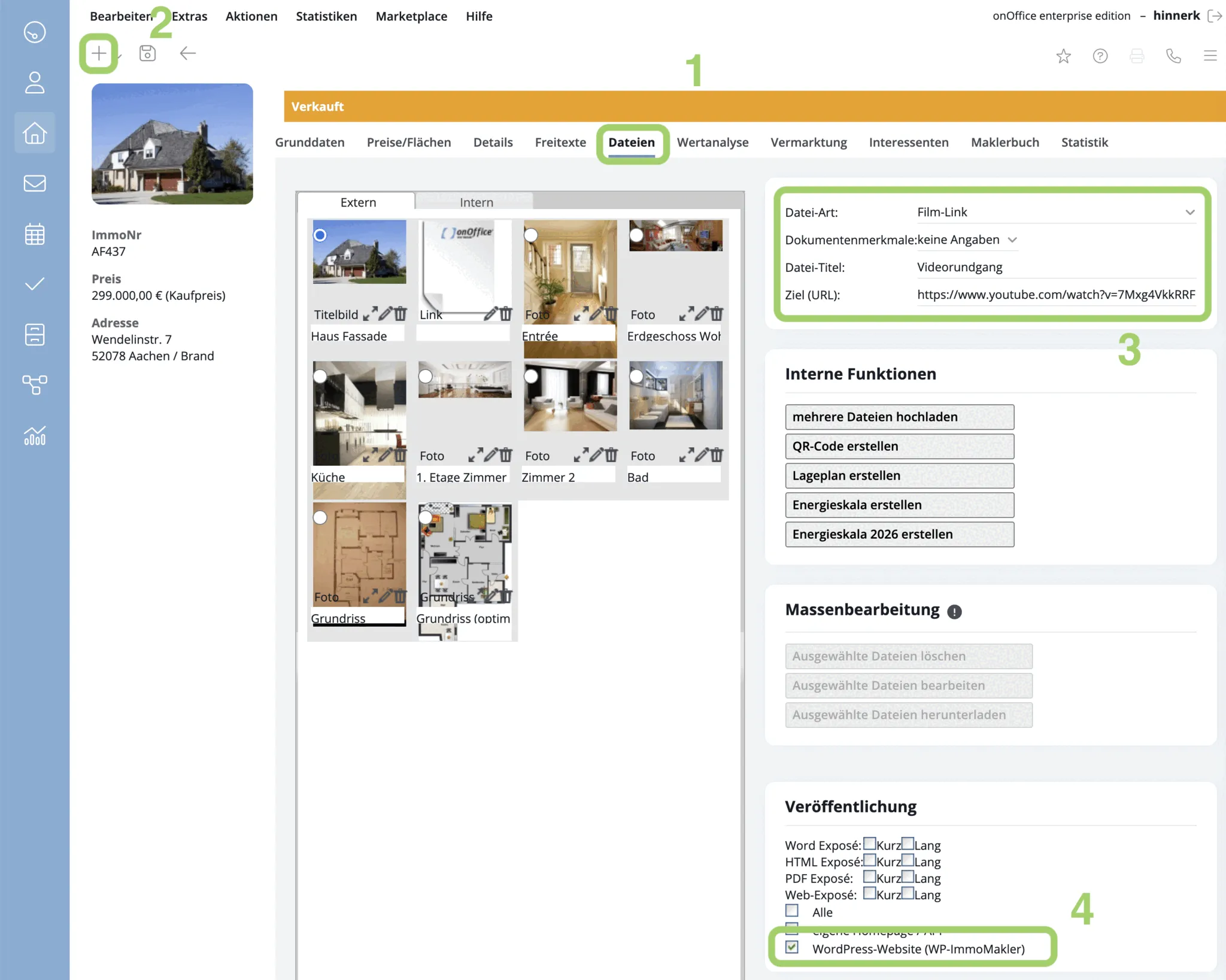
Section titled “Embedding a Video”To transfer a property video (e.g. from YouTube or Vimeo), go to the property’s Files tab and click the ”+”. Select “Film link” as the file type, give it a file title, and enter the video’s address under “Target (URL)”. Then, under “Publication”, activate the transfer to the portal that corresponds to your website.
Note: A regular “Link” to a YouTube or Vimeo video is also recognized as a video by WP-ImmoMakler. However, the “Film link” file type makes the assignment unambiguous — so we recommend using it instead.
WP-ImmoMakler automatically displays the video in the “Videos” section of the detail view: initially as a thumbnail with a play button that only plays in a lightbox after a click and the visitor’s consent. For more information, see Videos.
Embedding a 360-Degree Virtual Tour
Section titled “Embedding a 360-Degree Virtual Tour”To transfer a virtual tour (e.g. from Matterport or Ogulo), go to the property’s Files tab and click the ”+”. Select “Link” and activate “Publication on your website”.
Note: Do not use the outdated “Ogulo link” option — always use the general “Link” type.
WP-ImmoMakler PLUS automatically displays the tour in the “Virtual Tours” section of the detail view: initially as a preview image with a start button that only opens in a lightbox after a click and the visitor’s consent. With WP-ImmoMakler BASIC, the link is automatically shown in the property’s link list and opens in a new window. For more information, see Virtual Tours.

For further questions, please contact our support team.