

Create Archive Page
With the Property List View Gutenberg block you design your website’s property list view in the block editor. The block outputs the complete results list using WP-ImmoMakler’s HTML template — including the search form, sorting, pagination, and map view (depending on configuration and edition).
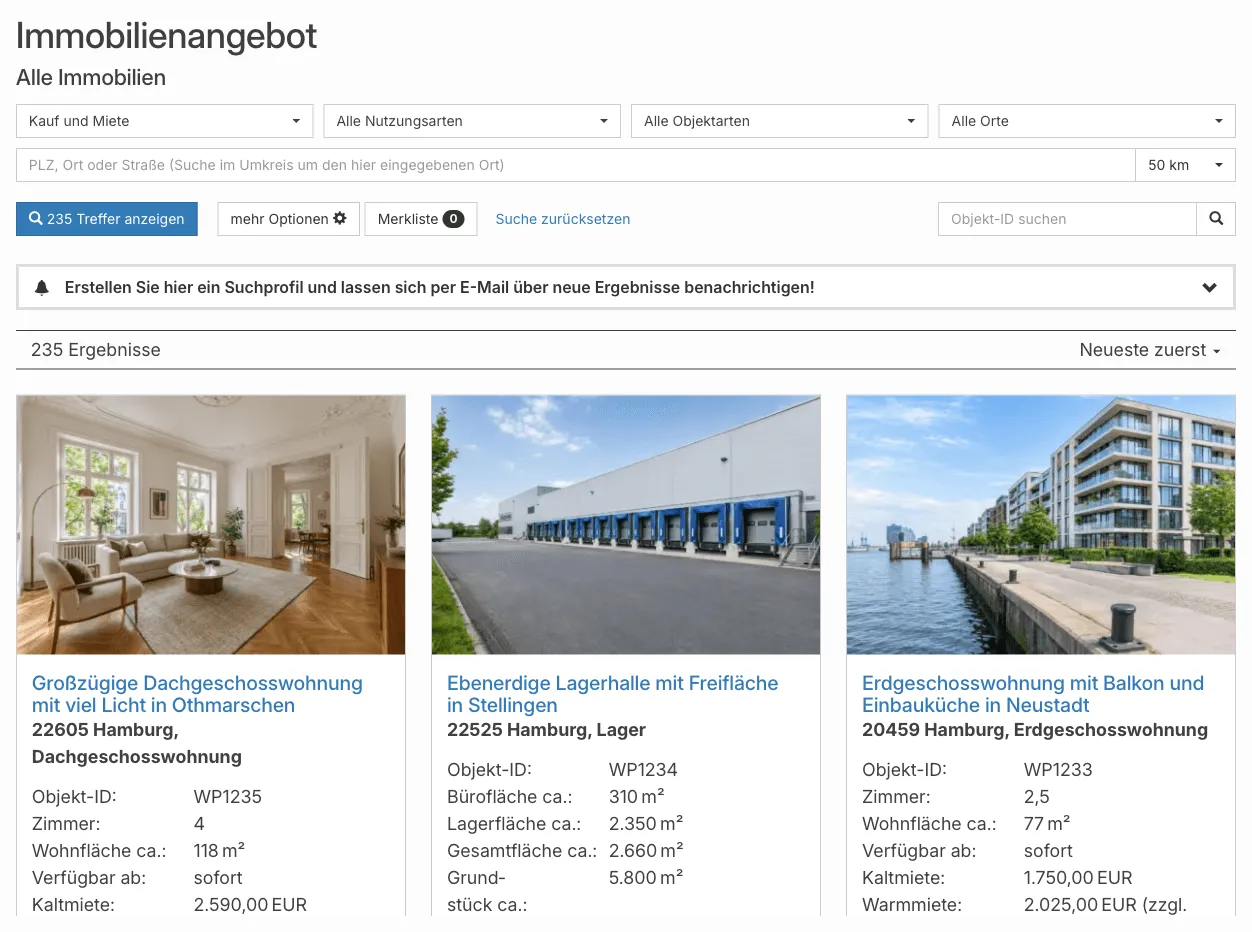
The block is not a building block for arbitrary pages: it shows the properties WordPress has found for the requested address — that is, the results list at /immobilien/ and in the category views such as /immobilien-arten/wohnung/. Search filters, sorting, and pagination only work there. An ordinary page has no such results; the block then simply shows a fixed preview with a few properties, without pagination and without effective search filters.
That’s why the block belongs in the template of the list view. Where you create this template depends on your theme:
| Your theme | Template of the list view | Guide |
|---|---|---|
| Block theme (e.g. Twenty Twenty-Five) | Archive: Properties template in the Site Editor | Block theme: template in the Site Editor |
Classic theme (with header.php / footer.php) | A template page in the block editor | Classic theme: template page |
Requirements
Section titled “Requirements”- WordPress 6.7 or later
- WP-ImmoMakler (any edition)
- For the Site Editor: a block theme
Block theme: template in the Site Editor
Section titled “Block theme: template in the Site Editor”In a block theme, you design the list view as a template for the Properties post type. WordPress then automatically uses this template at the address of the property list view.
-
Turn off the plugin template
In your website’s backend (wp-admin), disable the Plugin handles list and detail views option under WP-ImmoMakler → Settings → Theme Builder and save.
As long as this option is active, WP-ImmoMakler renders the list view with its own template — your template from the Site Editor is then not used.
-
Create the template
Open the Site Editor under Appearance → Editor and switch to Templates. Click Add New Template and select Archive: Properties. If this template already exists, open it instead.
-
Insert the block
In the template, click the + icon, search for Property List View (category Widgets), and insert the block where the results list should appear — usually between the header and footer template parts of your theme.
The editor shows a server-side rendered preview of the list view with real properties.
-
Save the template
Save the template. Then open the property list view (usually
/immobilien/) and check the search filters, sorting, and pagination.
Classic theme: template page
Section titled “Classic theme: template page”Classic themes have no Site Editor. Here you design the list view as a template page: an ordinary WordPress page that you build in the block editor and register with WP-ImmoMakler as a template. WP-ImmoMakler then shows this page at the address of the list view and in the category views — with the respective results list requested.
-
Create the page
Create a new page under Pages → Add New, for example with the title “Template: Property List View”.
-
Insert the block
Click the + icon, search for Property List View (category Widgets), and insert the block. Place any other blocks — such as a heading or intro text — as you would on any other page.
-
Register the page as a template
Below the page content, in the WP-ImmoMakler Template panel, select List view (Properties) under Use as.
-
Publish the page
Publish the page. Then open the property list view (usually
/immobilien/) and check the search filters, sorting, and pagination.
You can leave the Plugin handles list and detail views option enabled here: a matching template page takes precedence. The Template Pages page describes how to combine several template pages with conditions, and what WP-ImmoMakler handles for SEO, page title, and canonical URL on a template page.
Showing properties on an ordinary page
Section titled “Showing properties on an ordinary page”If you want to embed a property list on the home page or another page, use the [immomakler-archive] shortcode instead of the block — in the Shortcode block of the block editor. It accepts filter and display attributes such as vermarktungsart=kauf, posts_per_page=6, or columns=3. Place a search form on an arbitrary page with the Property search form block (Plus) or the [immomakler-search-form] shortcode.
Customization options
Section titled “Customization options”The block renders WP-ImmoMakler’s standard list view. Its appearance can be adjusted via:
- WP-ImmoMakler Customizer under Appearance → Customize → WP-ImmoMakler
- CSS customizations in the WordPress Customizer or via a child theme
- WP-ImmoMakler Child-Skin-Plugin for deeper template modifications
Preview properties
Section titled “Preview properties”In the Site Editor, the block shows a live preview with real properties. Unlike the detail view blocks, there’s no selection of a single preview property for it: the preview shows some published properties from your website.