

Template Pages
Some page builders don’t come with a theme builder: you can design individual pages with them, but not templates for your properties’ list and detail views. The best-known examples are the WPBakery Page Builder and the Avia Layout Builder of the Enfold theme; themes without any page builder at all are affected in the same way.
For these cases there are template pages: you create a completely normal WordPress page, design it like any other page, and register it with WP-ImmoMakler as a template. WP-ImmoMakler then displays this page at the address of the property list view or on every property detail page — with the data of the property being viewed in each case.
Setting up the list view
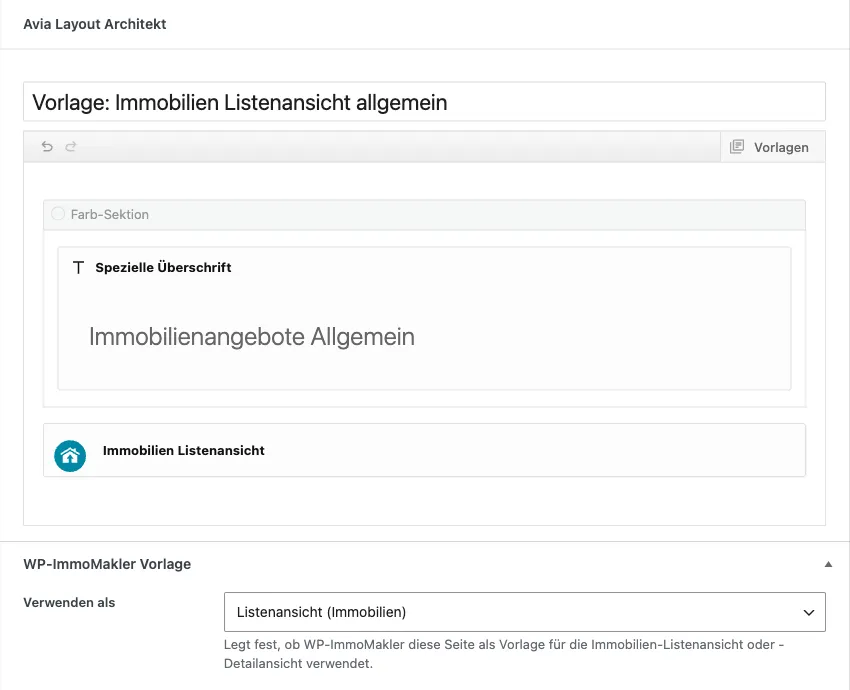
Section titled “Setting up the list view”- Create a new page under Pages → Add New, for example with the title “Template: Property List View”.
- Design the page with your page builder (for Enfold: Avia Layout Builder, for WPBakery: WPBakery editor).
- Insert the shortcode
[immomakler-template-archive]at the position where the results list should appear — in Enfold via the Code Block element. For Enfold and WPBakery there is also a dedicated element for this: Property List View (see Enfold and WPBakery). - Optional: Add
[immomakler-search-form]for the search form at a location of your choice. - Publish the page.
- In the page editor, under the WP-ImmoMakler Template panel, select List view (Properties) under Use as and save.
Then open the property list view (usually /immobilien/). Search filters, sorting, and pagination work as usual — including on page 2 and in the category views (for example /immobilien-arten/wohnung/), which use the same template page.
Setting up the detail view
Section titled “Setting up the detail view”- Create a second page, for example “Template: Property Detail View”.
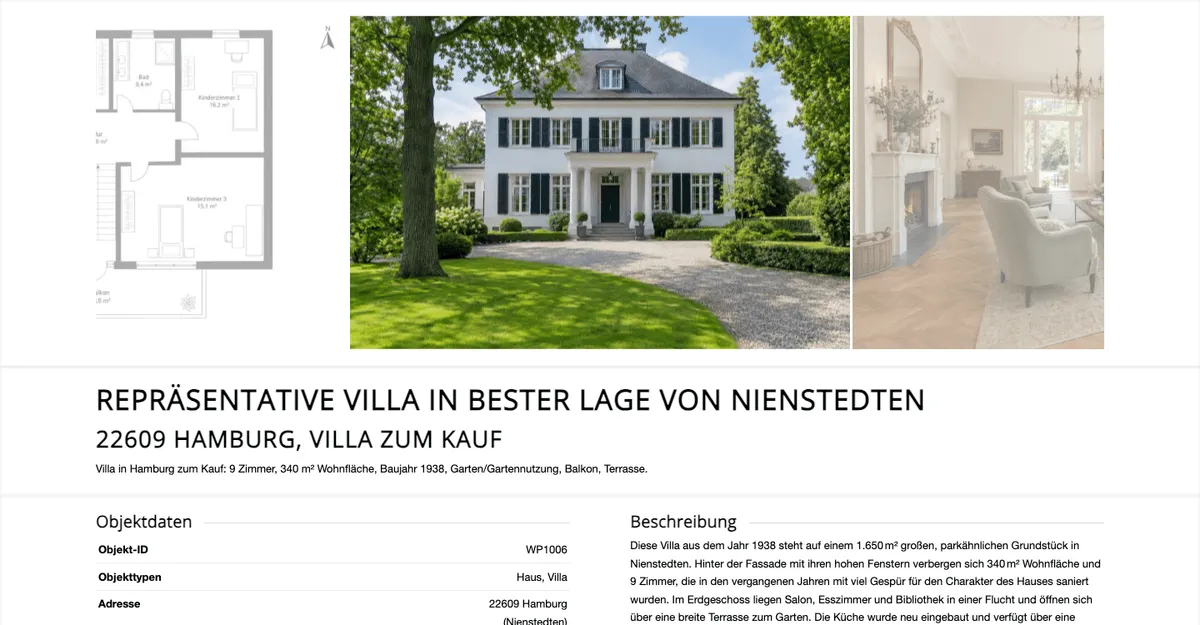
- Design the layout — for example a full-width gallery followed by two columns.
- Place the shortcodes you need.
[immomakler-template-single]outputs the complete detail view; alternatively, assemble the view from the individual building blocks (see table below). In Enfold and WPBakery there is a dedicated element for this, Property Detail View, where you switch the heading, the image gallery and the summary on and off individually (see Enfold and WPBakery), plus elements for the individual building blocks. - Publish the page.
- Under the WP-ImmoMakler Template panel, select Detail view (Property) under Use as and save.
All WP-ImmoMakler content on this page relates to the property being viewed.
Building blocks for the detail view
Section titled “Building blocks for the detail view”| Shortcode | Content |
|---|---|
[immomakler-template-single] | The complete detail view |
[immomakler-template-single hide_title="1" hide_gallery="1"] | Detail view without title and without gallery — useful if you place both yourself |
[immomakler-template-title] | Property title |
[immomakler-single-subtitle] | Subtitle (postcode, city, property type, buy/rent) |
[immomakler-template-single-gallery] | Image gallery |
[immomakler-template-single-map] | Map |
[immomakler-template-single-videos] | Videos |
[immomakler-template-single-virtual-tours] | Virtual tours (PLUS and up), see Virtual 360° tours |
[immomakler-template-single-downloads-links] | Downloads and links |
[immomakler-template-single-contact] | Contact details and contact form |
Different templates for different properties
Section titled “Different templates for different properties”You can create several template pages and give each one conditions — for example a separate detail view each for “buy house”, “rent house”, “buy apartment”, and “rent apartment”.
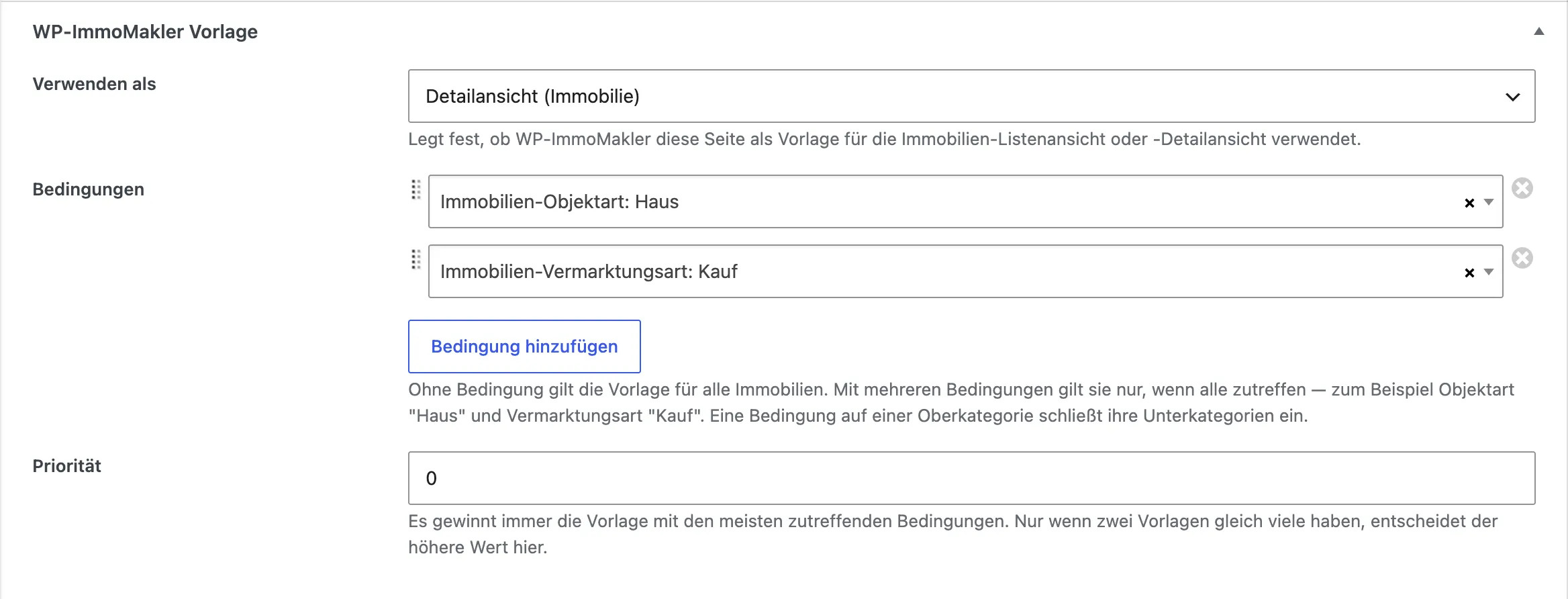
You set the conditions directly on the respective page, in the WP-ImmoMakler Template panel below the page content:
- Under Use as, choose whether the page serves as a list view or a detail view.
- Under Conditions, add the desired criteria, for example “Property type: House” and “Marketing type: Buy”. All conditions must match together.
- Save the page.
WP-ImmoMakler decides which template applies as follows:
- The template with the most matching conditions wins. So a template for “House + Buy” beats a template for “House”, which in turn beats a template with no conditions.
- If two templates have the same number of matching conditions, the value in the Priority field decides (higher wins).
- If no template page matches, WP-ImmoMakler renders the view itself as usual. So create a template page with no conditions if all remaining properties should also use your template.
A condition on a parent category also covers its subcategories: the condition “Property type: House” also matches a single-family house.
With the condition “Project: yes”, building projects get their own detail view; with “Project: no”, a template applies to all properties except building projects. The individual units of a project do not count as a project. This condition applies to the detail view only.
For the list view, the criteria that count are the ones the page filters by — the category page being viewed (for example /immobilien-arten/haus/) and additional filters in the address (?vermarktungsart=kauf).
Showing parts of a template depending on the property
Section titled “Showing parts of a template depending on the property”Instead of creating a separate template page for every case, you can show and hide individual sections within a template. This works in any page builder, because it’s a shortcode:
[immomakler-if typ="haus,wohnung" vermarktungsart="kauf"]Only visible for houses and apartments for sale.[/immomakler-if]
[immomakler-if-not typ="bauprojekt"]Visible for everything except development projects.[/immomakler-if-not]- As attributes, use the criteria from the address bar:
typ,vermarktungsart,nutzungsart,land,ort,status. - Multiple values in one attribute (comma-separated) match if any one of them matches; multiple attributes must all match.
projekt="ja"shows the section only on the detail page of a building project,projekt="nein"everywhere else in the detail view. The units of a project do not count as a project.context="single"orcontext="archive"restricts the section to the detail or the list view.
The shortcodes work on all property pages — even without a template page.
What WP-ImmoMakler takes care of
Section titled “What WP-ImmoMakler takes care of”Even though your theme renders a page, the address remains a property page. WP-ImmoMakler makes sure that
- the page title in the browser tab and in search results matches the property or the list view,
- the canonical URL (
rel="canonical") points to the property, not to the template page, - Open Graph data for social networks and the structured data (schema.org) describe the property,
- the search form, sorting, and pagination of the results list continue to work,
- Yoast SEO and Rank Math describe the property, not the template page.
Keeping an overview
Section titled “Keeping an overview”Your template pages are visible in three places:
- WP-ImmoMakler → Template Pages lists only the template pages.
- In the regular page list, the title is followed by what a page serves as a template for — for example “WP-ImmoMakler detail view (Property type: House, Marketing type: Buy)”.
- Under WP-ImmoMakler → Settings → Theme Builder, all template pages are listed in the order WP-ImmoMakler evaluates them.
Template pages and the “Plugin handles list and detail views” option
Section titled “Template pages and the “Plugin handles list and detail views” option”As long as no page is marked as a template, nothing changes: the Plugin handles list and detail views setting applies. As soon as a template page matches, it takes precedence — for the respective view. So you can design the list view using a template page while still letting WP-ImmoMakler render the detail view.
The template page’s own address
Section titled “The template page’s own address”A template page is a layout, not a page of your site. If a visitor opens its address, WP-ImmoMakler redirects them to the property list view. For search engines, the page is set to “noindex” and excluded from the sitemap (including Yoast SEO’s and Rank Math’s) and from your site’s own search. It also doesn’t show up in automatically generated page lists — for example, in the “Page List” block, the “Pages” widget, or the menu your theme displays as long as you haven’t assigned one. If you add a template page to a menu yourself, that entry stays.
Logged-in users who are allowed to edit the page can still see it, so you can review your layout from the editor. However, no property exists in context there, so the WP-ImmoMakler building blocks remain empty or show a notice — it’s best to judge the result on an actual property page.
Yoast SEO and Rank Math
Section titled “Yoast SEO and Rank Math”Both plugins are supported: on a template page, they continue to output the property’s or list view’s data — title and meta description follow the templates you’ve configured for the “Properties” content type, including the WP-ImmoMakler variables. You don’t need to configure anything for this.