Create Single Page
With the Property Detail View Gutenberg block you design the detail page of your properties in the block editor. The block outputs the full detail view using WP-ImmoMakler’s HTML template — including gallery, data tables, contact form, and map — always for the property the visitor is currently viewing.
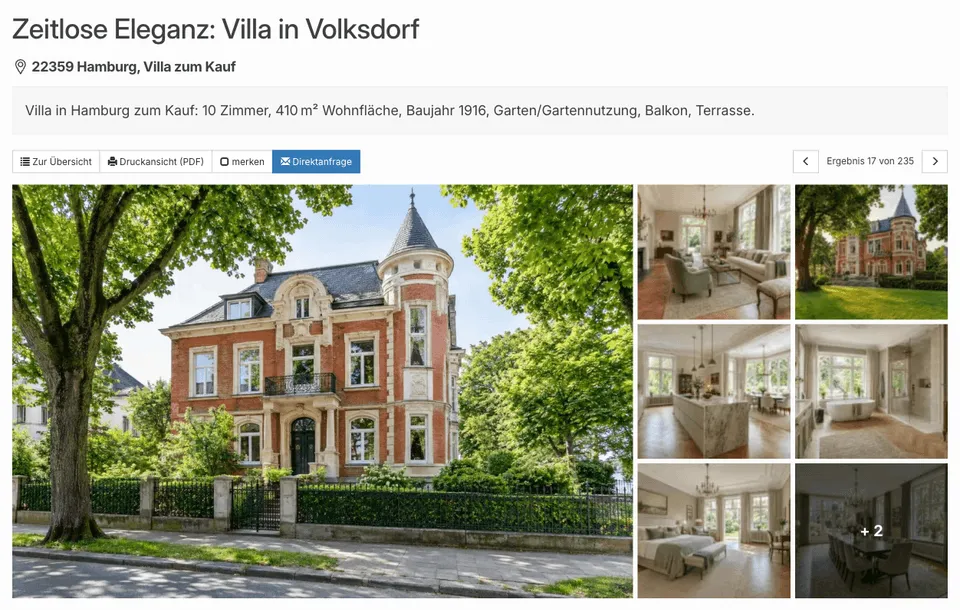
The block is not a building block for arbitrary pages: it needs a property in context, and that only exists on a property detail page. Properties also have no content editor of their own — their text, images, and data come from the import or the data fields. That’s why you place the block once in the template of the detail view that WordPress uses for all properties. Where you create this template depends on your theme:
| Your theme | Template of the detail view | Guide |
|---|---|---|
| Block theme (e.g. Twenty Twenty-Five) | Single item: Property template in the Site Editor | Block theme: template in the Site Editor |
Classic theme (with header.php / footer.php) | A template page in the block editor | Classic theme: template page |
Requirements
Section titled “Requirements”- WordPress 6.7 or later
- WP-ImmoMakler (any edition)
- For the Site Editor: a block theme
Block theme: template in the Site Editor
Section titled “Block theme: template in the Site Editor”In a block theme, you design the detail view as a template for the Property post type. WordPress then automatically uses this template for every property detail page.
-
Turn off the plugin template
In your website’s backend (wp-admin), disable the Plugin handles list and detail views option under WP-ImmoMakler → Settings → Theme Builder and save.
As long as this option is active, WP-ImmoMakler renders the detail view with its own template — your template from the Site Editor is then not used.
-
Create the template
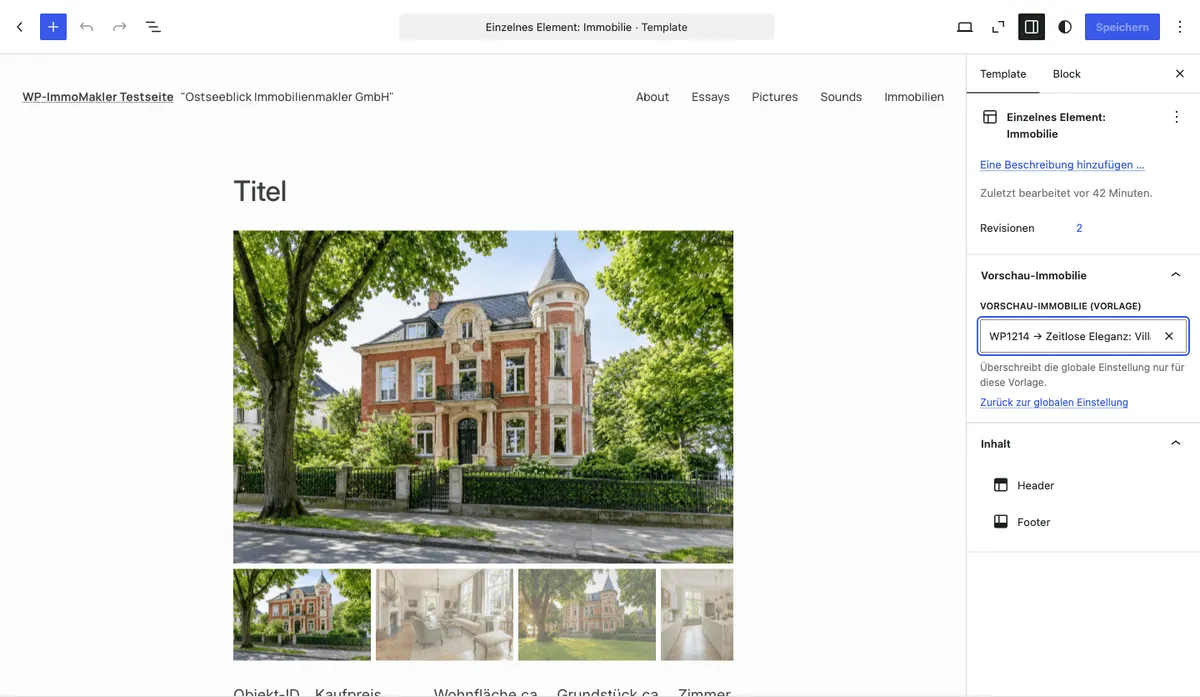
Open the Site Editor under Appearance → Editor and switch to Templates. Click Add New Template and select Single item: Property. If this template already exists, open it instead.
-
Insert the block
In the template, click the + icon, search for Property Detail View (category Widgets), and insert the block where the detail view should appear — usually between the header and footer template parts of your theme.
The editor shows a server-side rendered preview with the data of the preview property.
-
Save the template
Save the template. Then open a property on the frontend and check the display.
Classic theme: template page
Section titled “Classic theme: template page”Classic themes have no Site Editor. Here you design the detail view as a template page: an ordinary WordPress page that you build in the block editor and register with WP-ImmoMakler as a template. WP-ImmoMakler then shows this page on every property detail page — with the data of the respective property requested.
-
Create the page
Create a new page under Pages → Add New, for example with the title “Template: Property Detail View”.
-
Insert the block
Click the + icon, search for Property Detail View (category Widgets), and insert the block. Place any other blocks — such as a heading or a notice text — as you would on any other page.
-
Register the page as a template
Below the page content, in the WP-ImmoMakler Template panel, select Detail view (Property) under Use as.
-
Publish the page
Publish the page. Then open a property on the frontend and check the display.
You can leave the Plugin handles list and detail views option enabled here: a matching template page takes precedence. You can also create several template pages — for example one each for houses and flats — and give them conditions; the Template Pages page describes how that works, and what WP-ImmoMakler handles for SEO, page title, and canonical URL on a template page.
Block options
Section titled “Block options”Building the detail view from individual blocks
Section titled “Building the detail view from individual blocks”Instead of the complete detail view, you can also assemble the template from individual building blocks — in both variants, in the Site Editor as well as on a template page. Each building block refers to the property being viewed:
- Property Gallery
- Property Data, Key Data Boxes, and Key Data Icon List
- Features/Characteristics and Description
- Energy Performance Certificate
- Contact Details and Contact Form
- Neighbourhood Map, Downloads and Links, and Virtual Tours
You’ll find an overview of all blocks on the overview page.
Customization options
Section titled “Customization options”The block renders WP-ImmoMakler’s standard detail view. Its appearance can be adjusted via:
- WP-ImmoMakler Customizer under Appearance → Customize → WP-ImmoMakler
- CSS customizations in the WordPress Customizer or via a child theme
- WP-ImmoMakler Child-Skin-Plugin for deeper template modifications
Preview property
Section titled “Preview property”In the Site Editor, the block shows a live preview with real property data. Which property is used is determined by:
- Globally in your website’s backend (wp-admin) under WP-ImmoMakler → Settings → Theme Builder → Preview property
- Per template in the Site Editor: gear icon (Template Settings) → Preview property — searchable selection field, overrides the global setting for this template
On a template page, the global setting applies.