

Create Archive Template
With Elementor Pro you can fully design the property list view (archive) yourself. You have two approaches: the 1-Click HTML version for a quick start, or a custom template built with our widgets and Dynamic Tags.
Requirements
Section titled “Requirements”- Elementor Pro version 3.20.0 or later
- WP-ImmoMakler (any edition)
Option A: 1-Click HTML version (quick start)
Section titled “Option A: 1-Click HTML version (quick start)”The 1-click widgets display WP-ImmoMakler’s proven HTML templates. They are the right choice when you need a working layout quickly and want to make adjustments via CSS or the WP-ImmoMakler Child-Skin-Plugin.
-
Open the Theme Builder
Navigate to Elementor → Theme Builder and create a new template of type Archive via Add New Template.
-
Choose an empty template
Close the template library to start with a blank template (no pre-built layout).
-
Set the preview property
To have the editor show real data instead of placeholders, set the preview source — see Set the preview property below.
-
Insert the widget
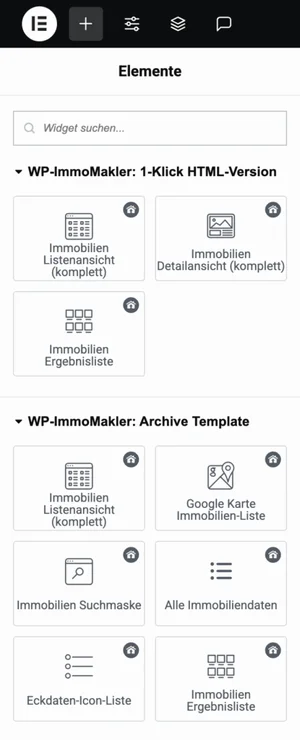
In the widget sidebar, search for the WP-ImmoMakler: 1-Click HTML Version category and drag the Real estate list view (complete) widget onto the page.
-
Set the condition
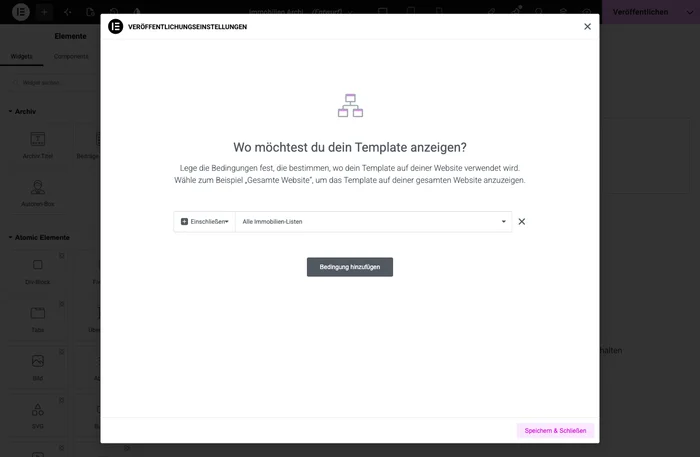
Click Publish, then Add Condition, and in the selection menu under the WP-ImmoMakler group choose the condition All Property Lists. This applies the template to all property archives.
-
Done
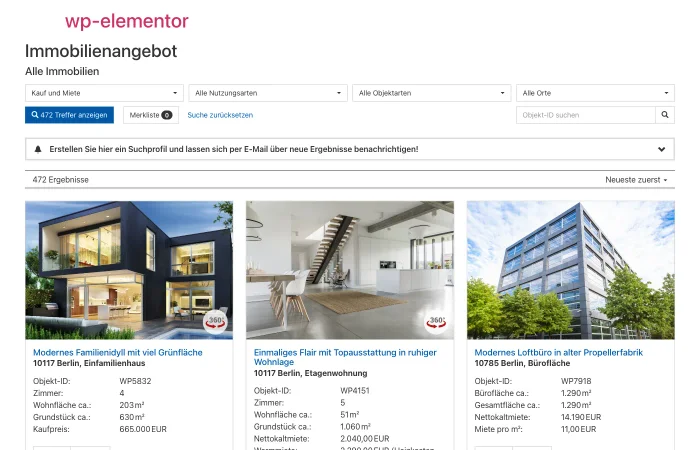
The list view is now displayed using the WP-ImmoMakler HTML template. Adjustments can be made via CSS, the Customizer, or the WP-ImmoMakler Child-Skin-Plugin.
Option B: Custom template
Section titled “Option B: Custom template”For full design freedom, create your own archive template using the specialized WP-ImmoMakler widgets and Elementor’s native Loop Grid.
-
Open the Theme Builder
Create a template of type Archive as described above.
-
Set the preview property
To have the editor show real data instead of placeholders, set the preview source — see Set the preview property below.
-
Set up the page layout
Choose a blank template. Add a container for your page structure (e.g., a two-column layout for search form + results).
-
Insert the search form PLUS
Drag the Property search form widget from the WP-ImmoMakler: Archive Template category into the sidebar or header area. The search form automatically filters the results list.
-
Insert the map PLUS
Optional: Add the Real estate map list view widget to display the search results on a map.
-
Build the results list
You have two options for the results list:
Option 1: Property Results List widget Drag the Real estate results list widget from the WP-ImmoMakler: Archive Template category onto the page. It displays configurable property cards as a loop.
Option 2: Elementor Loop Grid with Dynamic Tags For maximum control, use Elementor’s native Loop Grid widget. Create a loop template and use the WP-ImmoMakler Dynamic Tags inside it:
- Real estate: Cover picture as a dynamic image in the Image widget
- Property: Title as dynamic text in the heading
- Property: Value: Property data for price, area, number of rooms, etc.
- Key Figures Tiles for a compact key figures overview
- Property: Link to detail view as a dynamic URL for the button
-
Set the condition
Click Publish, then Add Condition, and choose the appropriate condition from the WP-ImmoMakler group:
Condition Description All Property Lists Template applies to all property archives Reference Property List Template applies only to reference properties You can create different templates for different archives (e.g., a dedicated layout for reference properties).
Available archive widgets
Section titled “Available archive widgets”| Widget | Category | Description |
|---|---|---|
| Real estate list view (complete) | 1-Click HTML Version | Complete list view with WP-ImmoMakler HTML templates |
| Key data text list | Archive Template | Compact inline list view |
| Real estate results list | Archive Template | Configurable property card loop |
| All real estate data | Archive Template | Freely configurable data table |
| Key data icon list | Archive Template | Key figures as an icon list |
| Key data boxes | Archive Template | Key figures as tiles (also usable in the archive) |
| Property search form PLUS | Archive Template | Property search form with filters |
| Real estate map list view PLUS | Archive Template | Map with property locations |
| Real Estate Carousel PLUS | Site-wide | Property carousel |
Useful Dynamic Tags for the list view
Section titled “Useful Dynamic Tags for the list view”When using Elementor’s Loop Grid, you can use these Dynamic Tags in any standard widget:
| Tag | Type | Use case |
|---|---|---|
| Property: Featured image | Image | Image widget, as background image |
| Property: Title | Text | Heading |
| Property: Value: Property data | Text | Price, number of rooms, area, etc. in text widgets |
| Property: Marketing type | Text | “Sale” or “Rental” as a badge |
| Property: Status | Text | Sold, rented, etc. |
| Property: Link to detail view | URL | Button, link |
Display Conditions in the archive
Section titled “Display Conditions in the archive”With Display Conditions you can show or hide elements in the list view based on the data of each property. You find the conditions in the Advanced tab of a widget, in the WP-ImmoMakler group:
- Images: Show a placeholder when no images are present (operator Is empty)
- Marketing type, Status, etc.: Different display for properties for sale vs. for rent
- Property data: Only show the price field when a price is available (operator Is not empty)
Set the preview property
Section titled “Set the preview property”When editing the template, Elementor displays placeholder data by default. To have the editor show your real properties, set the preview source in the page settings — ideally right at the start so you can work with real data as you build:
-
Click the gear icon (Page Settings) in the editor panel footer.
-
Open the Preview Settings section.
-
Under Preview dynamic content as, select Property Archive.
-
Click Apply & Preview. The template will now be displayed with the real data from your property list view.