

Silverstripe OpenImmo Property Transfer
If you run your website with Silverstripe CMS, you can still use WP-ImmoMakler as a full-featured real estate plugin — through an iFrame integration. WP-ImmoMakler runs on a separate WordPress installation, and the property view is embedded as an iFrame into your Silverstripe page.
Requirements
Section titled “Requirements”You need a WordPress installation on which WP-ImmoMakler runs and into which your properties are imported. That installation can sit on the same server as your Silverstripe website or on a separate host.
To embed it in Silverstripe you also need access to the templates of your theme. Unlike in many other CMS, in Silverstripe you do not paste the code into the editor but into a template — more on that shortly under Why the editor does not work. If an agency looks after your Silverstripe website, it is best to pass this guide on to them.
For exactly this scenario, WP-ImmoMakler comes with its own iFrame mode. So you do not write an <iframe> tag yourself — you switch the mode on in the settings and use the code WP-ImmoMakler then shows you, ready to paste.
Step 1: Enable iFrame mode
Section titled “Step 1: Enable iFrame mode”-
Open the settings
In the backend of your WordPress installation (wp-admin), go to WP-ImmoMakler → Settings → Display.
-
Switch on iFrame mode
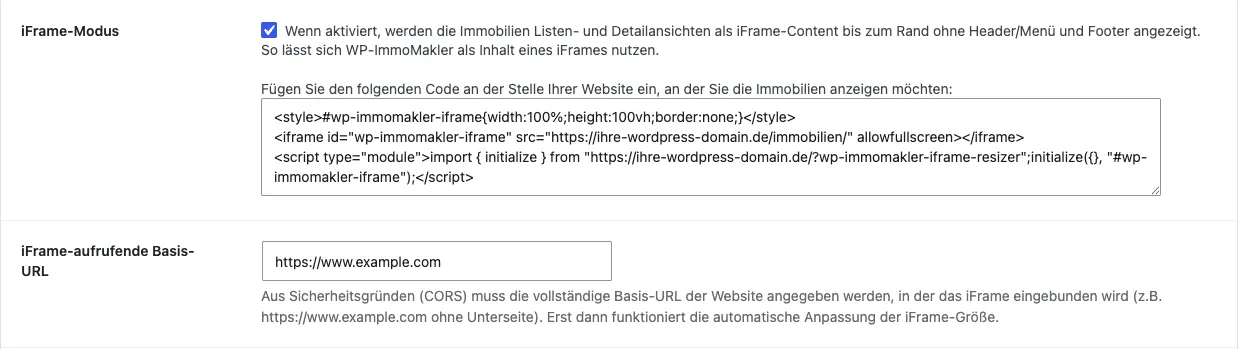
Tick iFrame mode. The list and detail views of your properties are then output as iFrame content, edge to edge — without the header, menu and footer of the WordPress installation. Image galleries open in full screen in this mode so that they are not limited to the height of the iFrame.
-
Enter the iFrame-calling base URL
Under iFrame-calling base URL, enter the full base URL of your Silverstripe website — that is, the address of the site the iFrame is embedded in, for example
https://www.example.comwithout a subpage. For security reasons (CORS), the automatic iFrame resizing only works once this entry is in place. -
Save
Save the settings.
Step 2: Copy the embed code
Section titled “Step 2: Copy the embed code”Directly below the iFrame mode option, WP-ImmoMakler shows the finished embed code — already containing the URLs of your own installation. Clicking into the field selects the whole code so you can copy it.
The code looks like this:
<style>#wp-immomakler-iframe{width:100%;height:100vh;border:none;}</style><iframe id="wp-immomakler-iframe" src="https://your-wordpress-domain.com/immobilien/" allowfullscreen></iframe><script type="module">import { initialize } from "https://your-wordpress-domain.com/?wp-immomakler-iframe-resizer";initialize({}, "#wp-immomakler-iframe");</script>It consists of three parts: a small stylesheet that gives the iFrame its full width, the iFrame itself, and a JavaScript module that continuously adjusts the height of the iFrame to its content. This means there is no second scrollbar, and the height adapts automatically when a visitor moves from the list to the detail view.
Step 3: Embedding in Silverstripe
Section titled “Step 3: Embedding in Silverstripe”Why the editor does not work
Section titled “Why the editor does not work”Silverstripe cleans up the editor content when saving and keeps only HTML elements that are explicitly allowed. <iframe>, <style> and <script> are not among them by default — yet all three are part of the embed code. If you paste the code into the editor of a page, Silverstripe removes it in whole or in part on saving, and the page shows nothing, or an iFrame without automatic height adjustment.
You could allow these elements in the editor configuration. We advise against it: the permission would then apply to all editors and all pages, and <script> in the editor in particular is a security risk. Embedding via a template is cleaner and cannot be broken by accident when someone edits a page.
Create the code as an include
Section titled “Create the code as an include”In your theme, create an include template containing the copied code, for example at themes/<your-theme>/templates/Includes/ImmoMaklerIframe.ss:
<style>#wp-immomakler-iframe{width:100%;height:100vh;border:none;}</style><iframe id="wp-immomakler-iframe" src="https://your-wordpress-domain.com/immobilien/" allowfullscreen></iframe><script type="module">import { initialize } from "https://your-wordpress-domain.com/?wp-immomakler-iframe-resizer";initialize({}, "#wp-immomakler-iframe");</script>Replace both https://your-wordpress-domain.com addresses with the values from your settings — the easiest way is to paste the code straight from the WP-ImmoMakler settings.
You can now output this include in two ways.
Option A: A dedicated page type for the property page (recommended)
Section titled “Option A: A dedicated page type for the property page (recommended)”With a dedicated page type, your editors create the property page like any other page in the page tree, and Silverstripe outputs the iFrame on it automatically.
-
Create the page type
Create the file
app/src/ImmobilienPage.php:<?phpclass ImmobilienPage extends Page{private static $table_name = 'ImmobilienPage';private static $singular_name = 'Immobilienseite';private static $description = 'Zeigt die Immobilien aus WP-ImmoMakler an.';} -
Create the layout template
Create the matching layout template at
themes/<your-theme>/templates/Layout/ImmobilienPage.ss. The easiest way is to copy thePage.sslayout template of your theme and add the include where you want it:<h1>$Title</h1>$Content<% include ImmoMaklerIframe %>This keeps the text that editors enter above the property list in the editor visible.
-
Update the database
Rebuild the database and flush the template cache — in Silverstripe CMS 6 with
vendor/bin/sake db:build --flush, in Silverstripe CMS 5 by calling/dev/build?flush=1in the browser. -
Create the page
In the Silverstripe backend, create a new page of type Immobilienseite and publish it.
Option B: Add the include to an existing template
Section titled “Option B: Add the include to an existing template”If the iFrame should appear on a specific page that already exists, you can also write the include directly into the template of that page type:
<% include ImmoMaklerIframe %>Then reload the page with the ?flush=1 parameter so that Silverstripe picks up the changed template. Note that the iFrame will then appear on all pages of that page type.
If the height is not adjusted automatically
Section titled “If the height is not adjusted automatically”If the iFrame stays at its initial height or a second scrollbar appears, it is almost always down to one of these causes:
- The code was pasted into the editor instead of a template, and Silverstripe removed the
<script type="module">on saving. Check the output in the source code of the finished page. - The iFrame-calling base URL is empty, contains a typo, or points at a subpage. Only the base URL, including
https://, belongs there. - The base URL entered does not match the address actually being called, for example
https://example.cominstead ofhttps://www.example.com. - Your Silverstripe website sends a Content Security Policy that does not allow scripts or iFrames from the domain of your WordPress installation. In that case, add the domain under
script-srcandframe-src.
Hosting options
Section titled “Hosting options”You can set the iFrame up yourself or have your agency configure it. Alternatively, we offer a setup service that takes care of visually integrating the plugin into the layout of your Silverstripe website. The iFrame can run on your own server or on ours.
If you have any questions about the setup, please contact our support team.