

Contao OpenImmo Property Transfer
If you run your website with Contao, you can still use WP-ImmoMakler as a full-featured real estate plugin — through an iFrame integration. WP-ImmoMakler runs on a separate WordPress installation, and the property view is embedded as an iFrame into your Contao page.
Requirements
Section titled “Requirements”You need a WordPress installation on which WP-ImmoMakler runs and into which your properties are imported. That installation can sit on the same server as your Contao website or on a separate host.
For exactly this scenario, WP-ImmoMakler comes with its own iFrame mode. So you do not write an <iframe> tag yourself — you switch the mode on in the settings and use the code WP-ImmoMakler then shows you, ready to paste.
Step 1: Enable iFrame mode
Section titled “Step 1: Enable iFrame mode”-
Open the settings
In the backend of your WordPress installation (wp-admin), go to WP-ImmoMakler → Settings → Display.
-
Switch on iFrame mode
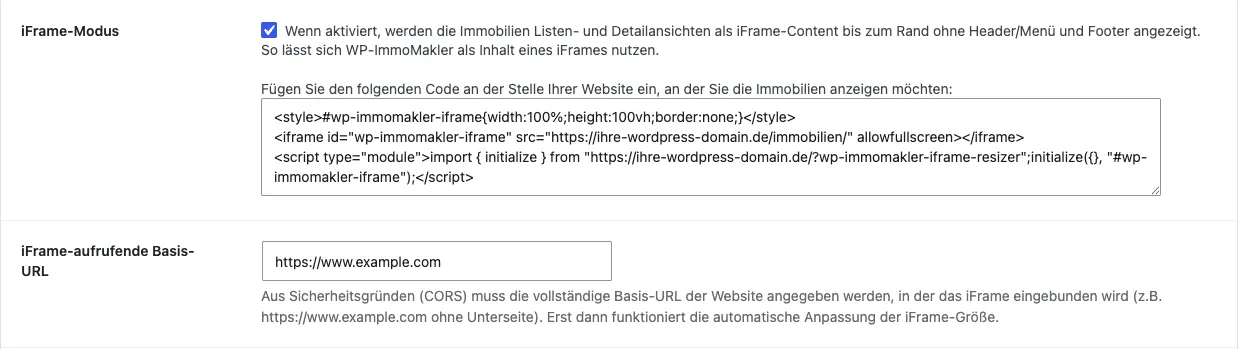
Tick iFrame mode. The list and detail views of your properties are then output as iFrame content, edge to edge — without the header, menu and footer of the WordPress installation. Image galleries open in full screen in this mode so that they are not limited to the height of the iFrame.
-
Enter the iFrame-calling base URL
Under iFrame-calling base URL, enter the full base URL of your Contao website — that is, the address of the site the iFrame is embedded in, for example
https://www.example.comwithout a subpage. For security reasons (CORS), the automatic iFrame resizing only works once this entry is in place. -
Save
Save the settings.
Step 2: Copy the embed code
Section titled “Step 2: Copy the embed code”Directly below the iFrame mode option, WP-ImmoMakler shows the finished embed code — already containing the URLs of your own installation. Clicking into the field selects the whole code so you can copy it.
The code looks like this:
<style>#wp-immomakler-iframe{width:100%;height:100vh;border:none;}</style><iframe id="wp-immomakler-iframe" src="https://your-wordpress-domain.com/immobilien/" allowfullscreen></iframe><script type="module">import { initialize } from "https://your-wordpress-domain.com/?wp-immomakler-iframe-resizer";initialize({}, "#wp-immomakler-iframe");</script>It consists of three parts: a small stylesheet that gives the iFrame its full width, the iFrame itself, and a JavaScript module that continuously adjusts the height of the iFrame to its content. This means there is no second scrollbar, and the height adapts automatically when a visitor moves from the list to the detail view. So you neither have to specify a fixed height nor add a resizing script of your own.
Step 3: Embedding in Contao
Section titled “Step 3: Embedding in Contao”In Contao, you embed the code via an HTML content element:
-
Open the page
In the Contao back end, switch to the page you want.
-
Add a content element
Add a new content element of type HTML.
-
Insert the code
Paste the code you copied from the WP-ImmoMakler settings.
-
Save and publish
Save the content element and publish the page.
If the height is not adjusted automatically
Section titled “If the height is not adjusted automatically”If the iFrame stays at its initial height or a second scrollbar appears, it is almost always down to one of these three causes:
- The iFrame-calling base URL is empty, contains a typo, or points at a subpage. Only the base URL, including
https://, belongs there. - The base URL entered does not match the address actually being called, for example
https://example.cominstead ofhttps://www.example.com. - Contao or an extension removes the
<script type="module">from the content element. Check the output in the source code of the finished page.
Hosting options
Section titled “Hosting options”You can set the iFrame up yourself or have your agency configure it. Alternatively, we offer a setup service that takes care of visually integrating the plugin into the layout of your Contao website.
If you have any questions, please contact our support team.