

Setting up AI connectors
For the AI features of WP-ImmoMakler to be able to generate SEO texts, descriptions, and excerpts, at least one AI provider with a valid API key must be connected in WordPress. This page shows how to set up a connector and create an API key with the three providers supported by default. PLUS
Which provider is right for me?
Section titled “Which provider is right for me?”You can store one or more providers at the same time — WP-ImmoMakler automatically selects a suitable model from the connected providers. A single provider is enough to get started.
- Anthropic Claude — powerful models for high-quality texts, paid (top-up of credit required).
- Google Gemini — offers a free entry tier with a limited quota; ideal for trying it out.
- OpenAI ChatGPT — widely used, paid (payment method or credit required).
Creating the connector in WordPress
Section titled “Creating the connector in WordPress”The procedure is the same for all providers: first you create an API key with the provider (see the sections further below), then you store it in WordPress.
-
Create the API key with the provider
Follow the guide for Anthropic Claude, Google Gemini, or OpenAI ChatGPT and copy the generated key.
-
Open the Connectors page
In the backend of your website (wp-admin), navigate to Settings → Connectors. The three default providers Anthropic, Google, and OpenAI are already listed there.
-
Select the provider and paste the key
Open the desired provider and paste the copied API key into the field provided for it.
-
Save
Save your entry. The connector now counts as connected and is available to all plugins that use the WordPress AI Client.
-
Activate in WP-ImmoMakler
Under WP-ImmoMakler → Integrations → AI features, enable the main switch Enable use of artificial intelligence. Once a provider is connected, the yellow notice “AI features enabled, but no AI provider connected” and the red status dot on the menu item disappear.

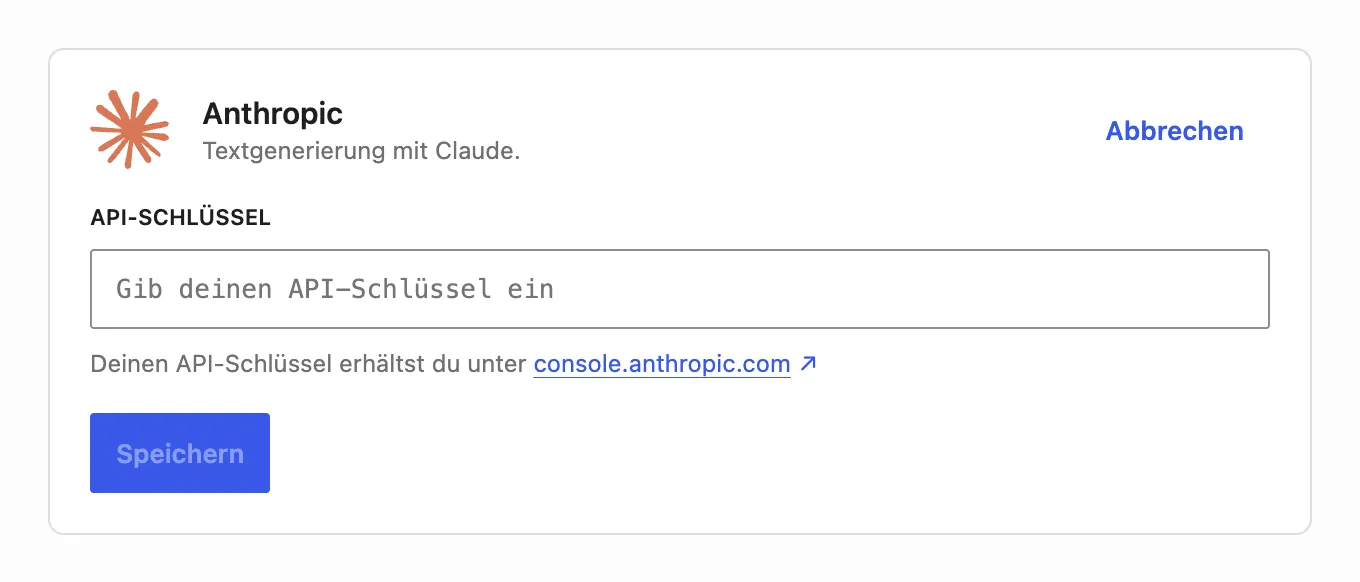
For the provider you want to connect, click Set up (or Edit, if a key is already stored) and paste the API key into the API key field:
Anthropic Claude: Creating an API key
Section titled “Anthropic Claude: Creating an API key”-
Create an account or sign in
Open the Claude Console (formerly Anthropic Console) and sign in or create an account.
-
Top up credit
The Claude API is paid and requires credit. Under Plans & Billing, top up some starting credit or store a payment method.
-
Generate the API key
Open the API keys page (in the sidebar) and click Create key. Give it a name (e.g.
WP-ImmoMakler).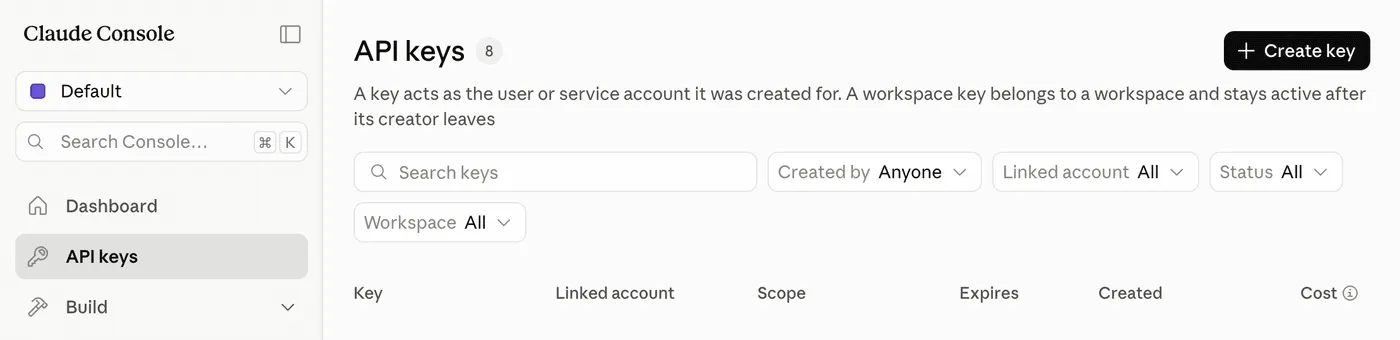
-
Copy the key
Copy the displayed key (it starts with
sk-ant-) immediately and in full — for security reasons it is only shown in full once. -
Store it in WordPress
Paste the key with the Anthropic provider as described under Creating the connector in WordPress and save.
Google Gemini: Creating an API key
Section titled “Google Gemini: Creating an API key”-
Open Google AI Studio
Open Google AI Studio and sign in with your Google account.
-
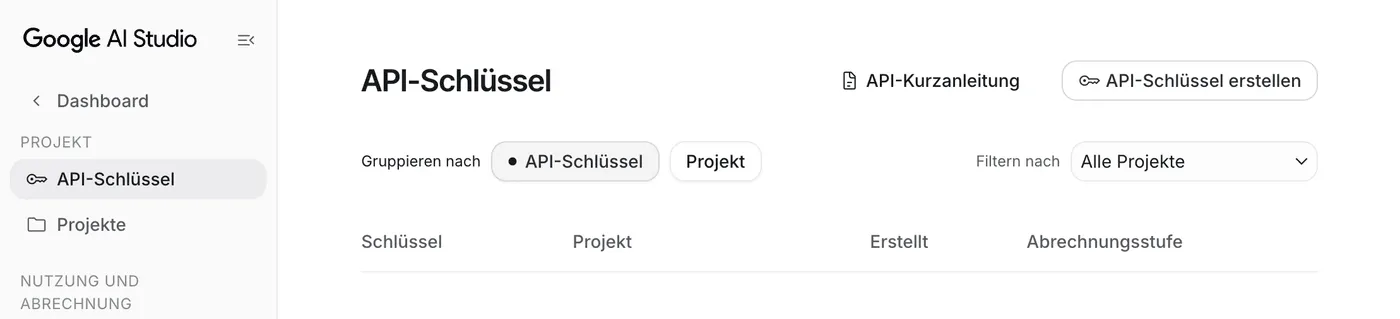
Open the API key management
Open the API Keys page (in the sidebar under Project).
-
Create the key
Click Create API key and assign it to an existing or new Google Cloud project.
-
Copy the key
Copy the generated key.
-
Store it in WordPress
Paste the key with the Google provider as described under Creating the connector in WordPress and save.
OpenAI ChatGPT: Creating an API key
Section titled “OpenAI ChatGPT: Creating an API key”-
Create an account or sign in
Open the OpenAI Platform and sign in or create an account.
-
Set up billing
The OpenAI API is paid and independent of a ChatGPT Plus subscription. Under Settings → Billing, store a payment method or top up credit.
-
Generate the API key
Open the API keys page and click Create new secret key. Give it a name (e.g.
WP-ImmoMakler).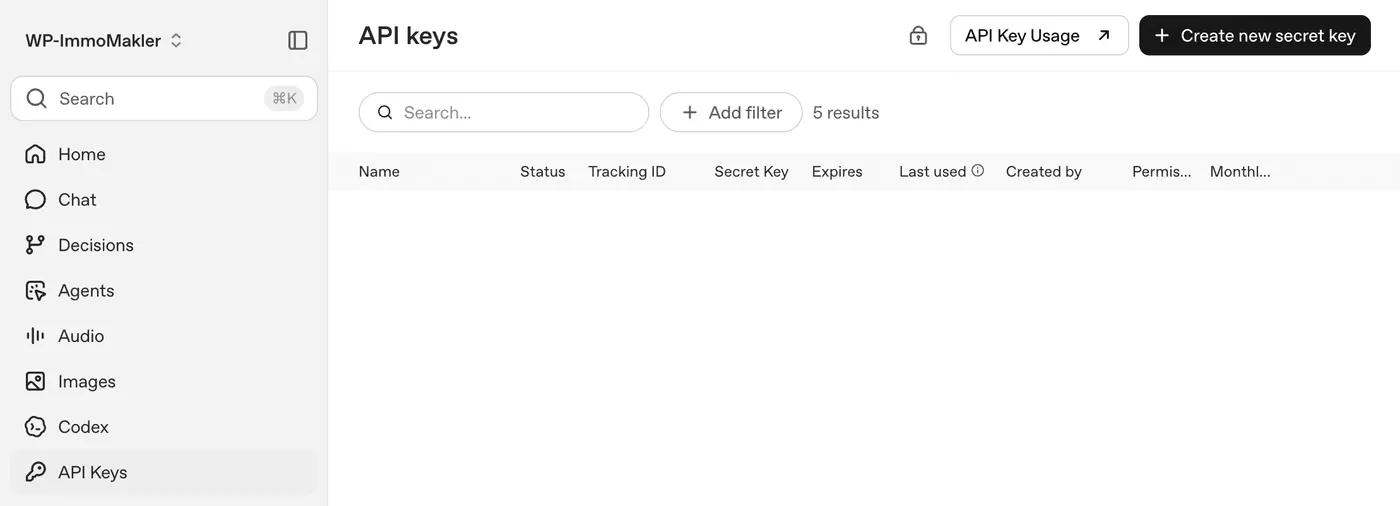
-
Copy the key
Copy the displayed key (it starts with
sk-) immediately and in full — it is only shown once. -
Store it in WordPress
Paste the key with the OpenAI provider as described under Creating the connector in WordPress and save.
Frequently asked questions
Section titled “Frequently asked questions”Do I have to set up all three providers? No. A single connected provider is enough. Several providers at the same time are possible; WP-ImmoMakler then automatically selects a suitable model.
Where can I see whether a provider is connected correctly? Under WP-ImmoMakler → Integrations → AI features: if a connection is missing, a yellow notice banner and a red status dot on the WP-ImmoMakler menu item appear. Once a provider is connected with a valid key, both notices disappear.
What does usage cost? Billing is handled directly by the AI provider based on the volume of text processed. WP-ImmoMakler does not charge any additional fees. Google Gemini offers a free entry tier; Anthropic and OpenAI require credit or a payment method.