

Dynamic Data (Block Bindings)
With WordPress Block Bindings you connect the editor’s standard blocks directly to a property’s data. A paragraph then shows the purchase price, a button links to the floor plan, an image block shows the cover photo — without you having to use a dedicated WP-ImmoMakler block for it.
This is the counterpart to Elementor’s and Bricks’ Dynamic Tags, and Enfold’s and Divi’s Dynamic Content: the same fields, just in the WordPress editor.
How to connect a block
Section titled “How to connect a block”-
Select the block
In the editor, select the block you want to connect — Paragraph, Heading, List item, Image, or Button.
-
Open Attributes
Open the Attributes panel in the right sidebar.
-
Choose the attribute
Select the attribute that should receive the data (for a button, for example, URL or Text).
-
Choose the field
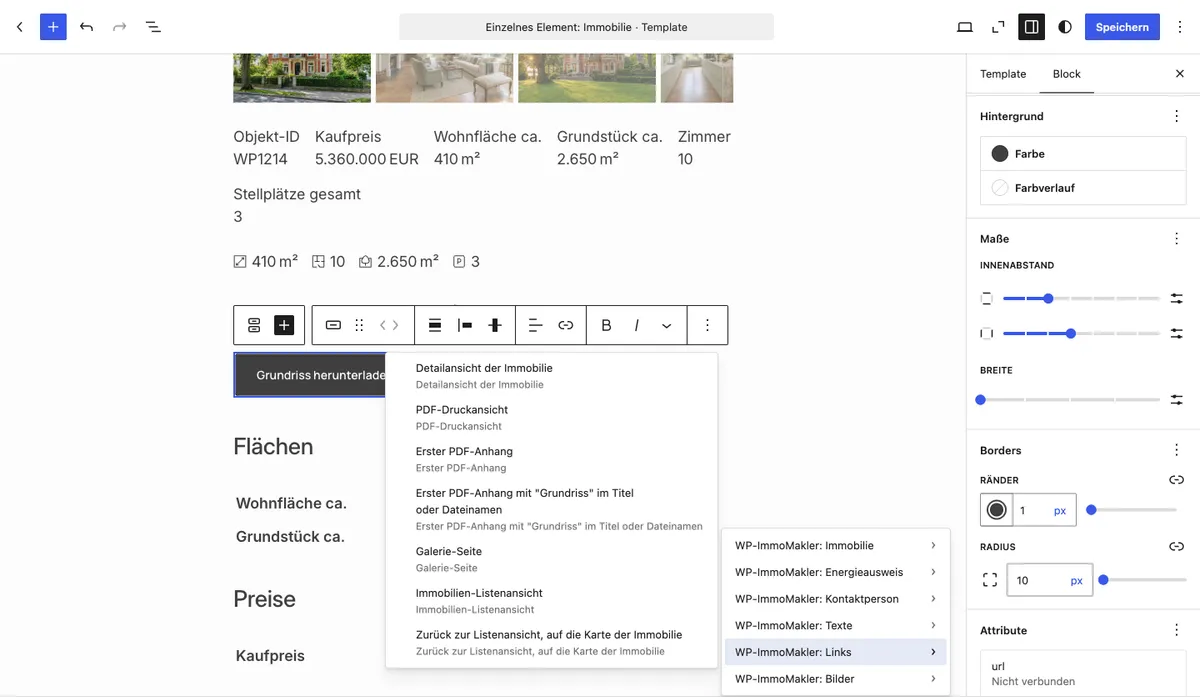
Choose one of the WP-ImmoMakler groups from the list, then the field you want within it.
The block shows the value of the property currently being displayed. On a template page, that is the property being viewed, not the template page itself.
Available groups
Section titled “Available groups”| Group | Content |
|---|---|
| WP-ImmoMakler: Property | All property data, including areas and prices |
| WP-ImmoMakler: Energy certificate | The energy certificate fields, for all countries |
| WP-ImmoMakler: Contact person | The details of the contact person |
| WP-ImmoMakler: Texts | Heading, subtitle, listing type, status, the main price with its label (such as “Base rent” and “1,510.00 EUR”), for a reference property the brokerage result (“successfully sold” or “successfully let”) and the same notice as a full sentence (“This property has already been successfully sold.”), for reserved, sold or let properties the notice saying so (“This property is reserved.”), the four description texts, the amenities as a list, plus the list view’s heading and search result title |
| WP-ImmoMakler: Links | Property detail view, PDF print view, first PDF attachment, first PDF attachment with “floor plan” in the title or file name, gallery page, property list view, and a “back to the list view” link that returns visitors to the list they came from and scrolls there to the property’s card |
| WP-ImmoMakler: Images | Cover photo, contact person’s photo, the first five property photos, and the first three floor plans — each as the image’s URL |
Which blocks can be connected
Section titled “Which blocks can be connected”WordPress determines which blocks and attributes support Block Bindings:
| Block | Attributes |
|---|---|
| Paragraph, Heading, List item | Content |
| Image | URL, Alt text, Title, Caption |
| Button | URL, Text, Link target, Rel |
| Navigation link | URL |
All WP-ImmoMakler fields provide text, so they are available for every one of these attributes. An image field provides the URL of the image at its original size — use it for an image block’s URL attribute.
Example: Link the floor plan as a button
Section titled “Example: Link the floor plan as a button”-
Add a button
Add a Button block and label it, for example “View floor plan”.
-
Choose the URL attribute
Open Attributes and select URL.
-
Choose the floor plan field
Choose the WP-ImmoMakler: Links group, then First PDF attachment with “floor plan” in the title or file name.
If a property has several PDFs attached — for example an exposé and an energy certificate — this field specifically targets the floor plan. It searches the title and file name of the PDF attachments for “floor plan”; case does not matter, and variants such as “floor plans” or “Grundriss_EG.pdf” are also recognized.
If a property has no matching PDF, the value stays empty.
You might also be interested in
Section titled “You might also be interested in”- Gutenberg Blocks — overview of all WP-ImmoMakler blocks
- Create Single Page — build a property’s detail view as a template
- Downloads and Links — output all of a property’s files and links as a list
- Property Data — output a property’s key data as a definition list