

Setting up the withdrawal button
WP-ImmoMakler provides a withdrawal button with an accompanying withdrawal form that lets consumers withdraw from a contract they concluded with you (for example an estate agency agreement) online. After submitting, the consumer immediately receives an automatic acknowledgement of receipt by email, and you as the estate agent are notified by email in parallel.
The feature is included in all editions (BASIC and PLUS).
Background
Section titled “Background”With the implementation of the EU requirements, Section 356a of the German Civil Code (BGB) (effective from 19 June 2026) requires an easily accessible, digital withdrawal function for distance contracts concluded online. The process has three stages:
- A permanently visible, clearly labelled button (e.g. “Withdraw from contract”).
- A confirmation page with a form to identify the contract.
- An explicit confirmation click and an immediate acknowledgement of receipt to the consumer on a durable medium (email).
Setting up in the backend
Section titled “Setting up in the backend”You will find the central settings in the back end of your website (wp-admin) under WP-ImmoMakler → Settings → Withdrawal button.
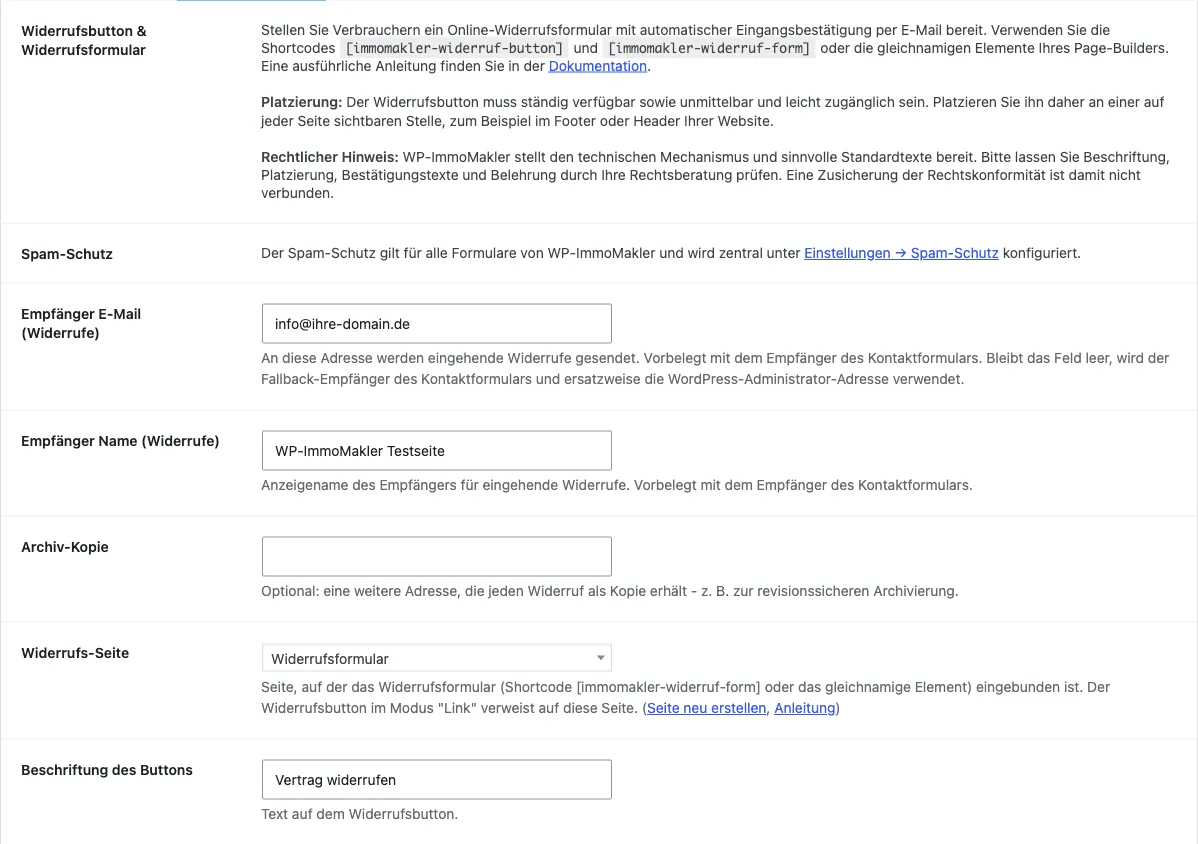
| Setting | Description |
|---|---|
| Recipient email (withdrawals) | Address to which incoming withdrawals are sent. Prefilled with the contact form recipient. If the field is left empty, the contact form’s fallback recipient and, failing that, the WordPress administrator address are used. |
| Recipient name (withdrawals) | Display name of the recipient. Prefilled with the contact form recipient. |
| Archive copy | Optional additional address that receives a copy of every withdrawal for archiving. |
| Withdrawal page | Page selector: the page on which the withdrawal form is embedded. In “Link” mode the button points to this page. |
| Button label | Text on the withdrawal button (default: “Withdraw from contract”). |
| Button colour | Background colour of the button (default: dark red). Without a custom hover colour (see below), the hover colour is calculated automatically a little darker. When embedded via a page builder, its own style settings can override this colour. |
| Button hover colour | Background colour on mouse hover. Empty = automatically a little darker than the button colour. This setting also applies when no Button colour is configured above - the button then keeps your theme’s appearance and only switches to this colour on hover. If a shortcode, block or page-builder element sets its own background colour, that button always gets its own automatically darkened hover colour instead. When embedded via a page builder, its own style settings can override this colour. |
| Button text colour | Text colour of the button in the normal state (default: white) - applies to both the withdrawal button and the form’s submit button. Without a custom hover text colour (see below), it also applies on hover. Page-builder style settings can override it. |
| Button hover text colour | Text colour on mouse hover. Empty = the same colour as the normal state. Page-builder style settings can override it. |
| Introductory text above the form | Shown above the form. |
| Submit button label | Text on the button that submits the form (default: “Submit withdrawal”). |
| Acknowledgement-of-receipt text (email) | Introductory text of the automatic confirmation email to the consumer. |
| Privacy policy page | Page selector for the privacy notice link in the form. If nothing is selected, the privacy policy page configured in WordPress is used. |
The sender name of the emails is taken from the Sender name and Sender email fields of the contact form (under WP-ImmoMakler → Settings → Contact form).
Embedding via shortcode
Section titled “Embedding via shortcode”Two shortcodes are available. Like all WP-ImmoMakler shortcodes, they use hyphens.
Withdrawal button
Section titled “Withdrawal button”[immomakler-widerruf-button][immomakler-widerruf-button mode=modal]| Attribute | Values | Description |
|---|---|---|
mode | link (default), modal, none | Behaviour of the button (see below). |
label | Text | Label. Empty = default text from the settings. |
page | URL or page ID | Target in link mode. Empty = withdrawal page from the settings. In the page builders you conveniently choose the page from a drop-down list. |
link | URL | Custom link to any address (e.g. external URL, anchor or builder pop-up action). Overrides page. |
color | Hex colour | Background colour of the button (e.g. #1a7f5a). Empty = colour from the settings. Without a custom hover colour in the settings, the hover colour is calculated automatically a little darker. |
class | CSS class(es) | Additional classes on the button - for example as a trigger for a builder pop-up. |
Modes:
link- The button is a link to the configured withdrawal page (where the form is embedded).modal- The button opens the form in an overlay on the same page. The form is delivered automatically.none- The button triggers no behaviour of its own. This mode is meant for using a builder-native pop-up as the trigger (see Native page-builder pop-ups).

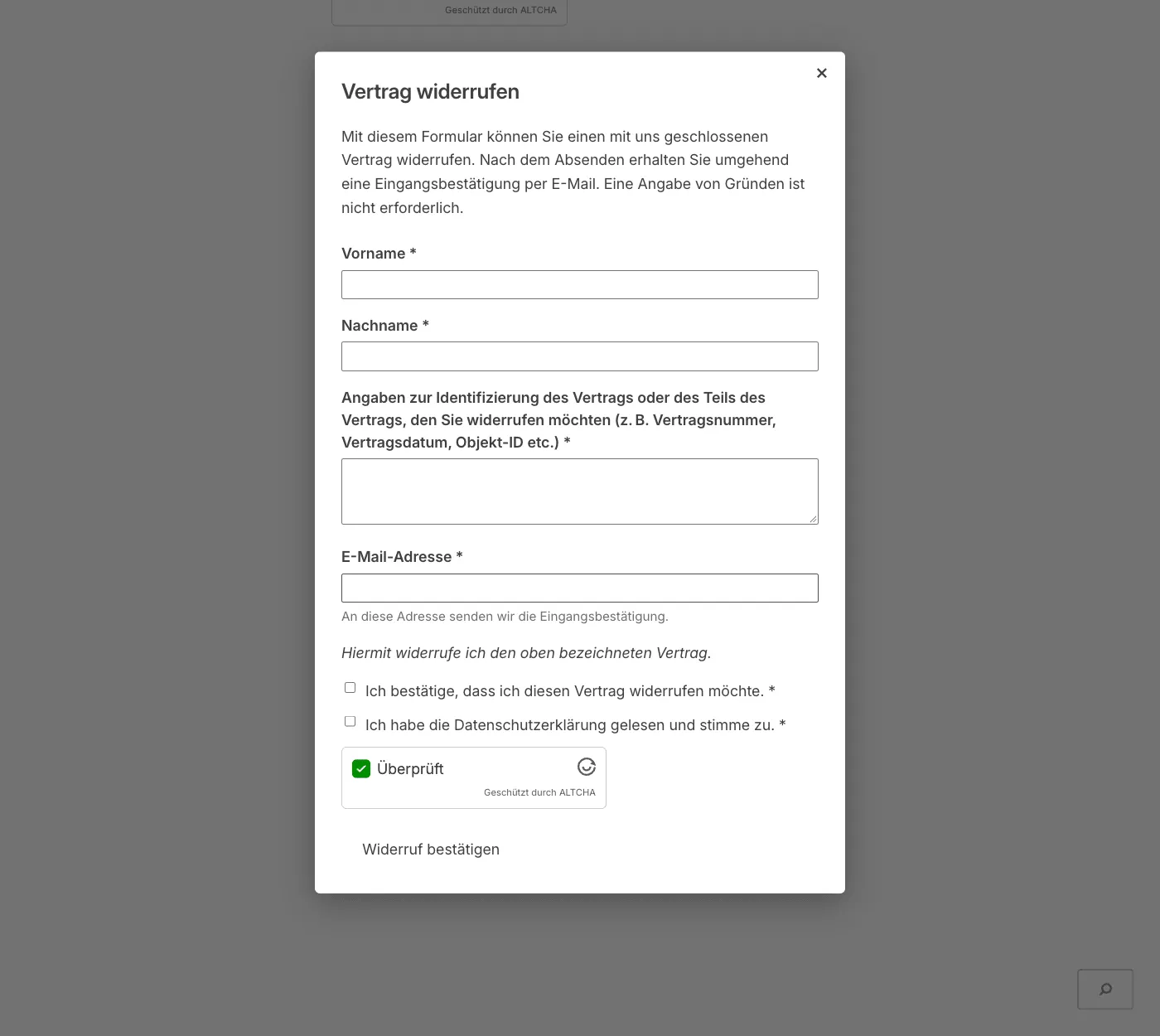
Withdrawal form
Section titled “Withdrawal form”[immomakler-widerruf-form]| Attribute | Values | Description |
|---|---|---|
post_id | WordPress post ID of the property | Optional. Prefills the contract-identification field with the property’s object ID and title. This is the internal WordPress post ID of the property, not the external property number (objektnr_extern, e.g. “W882”). |
contract_identification_prefill | Text | Optional. Prefills the identification field with a fixed text. Takes precedence over post_id. |
object_id | WordPress post ID of the property | Deprecated. Alias for post_id, still works. |
object_label | Text | Deprecated. Alias for contract_identification_prefill, still works. |
When post_id is given, the form prefills the “Information identifying the contract” field with the property’s object ID (external property number) and title. The consumer can still edit these details.
Embed the button and the form depending on the desired flow: either the button in link mode on any page and the form on a dedicated withdrawal page, or the button in modal mode, which shows the form directly in the overlay.
The form
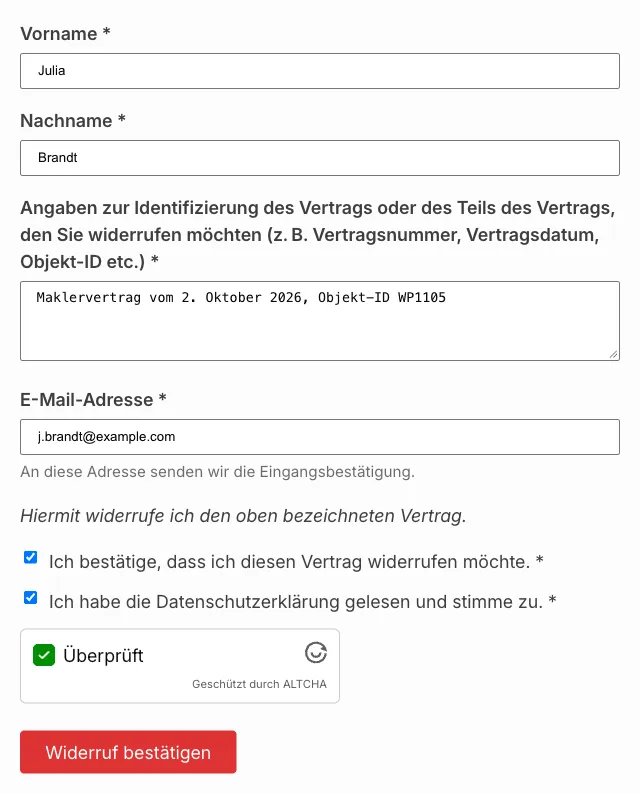
Section titled “The form”The form (the confirmation page) is deliberately short and only asks for what a withdrawal requires. All fields are mandatory (marked with *):
- First name and Surname
- Details identifying the contract (text field) - or the part of the contract the consumer wishes to withdraw from (e.g. contract number, contract date, property ID etc.)
- Email address - the acknowledgement of receipt is sent to this address
Below these follow the declaration “I hereby withdraw from the contract identified above.”, a mandatory confirmation of the withdrawal and consent to the privacy policy. The form is submitted via the button whose text you set in the settings (default “Submit withdrawal”).
Process and emails
Section titled “Process and emails”When submitted, the form is transmitted via AJAX - so the page does not reload, and the acknowledgement of receipt appears right in place. If JavaScript is disabled, the form continues to work as a normal form submission.
Two emails are triggered:
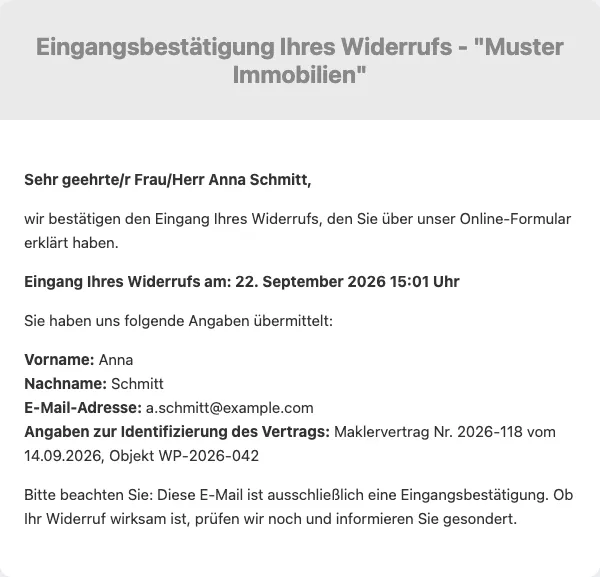
- To the consumer: an immediate acknowledgement of receipt with the content of the withdrawal as well as the date and time of submission. The confirmation documents only the receipt of the withdrawal - it is deliberately not a confirmation of its effectiveness, which is checked and communicated separately. In your own texts, therefore, avoid wording such as “Your withdrawal has been confirmed”.
- To you (estate agent): a notification with all the submitted details. The consumer’s email address is set as the reply address (Reply-To); optionally, an archive copy is sent as a separate email to the configured archive address.

Withdrawal emails in the backend
Section titled “Withdrawal emails in the backend”Every incoming withdrawal is stored in WordPress in addition to being sent by email. You will find the stored withdrawal emails in the back end of your website (wp-admin) under WP-ImmoMakler → Withdrawal Emails. The menu item only appears once the withdrawal form has actually been used at least once - even if the sending was not successful.
For every withdrawal, WP-ImmoMakler creates a single record that documents both emails sent for it together - the notification to your email address and the acknowledgement of receipt to the customer. For both, the list shows the recipient address used and whether the sending was successful according to WordPress. For the acknowledgement of receipt, a further distinction is made between it not being sent at all - for example on suspicion of spam or after the hourly limit was reached (see below) - and an actual sending attempt having failed.
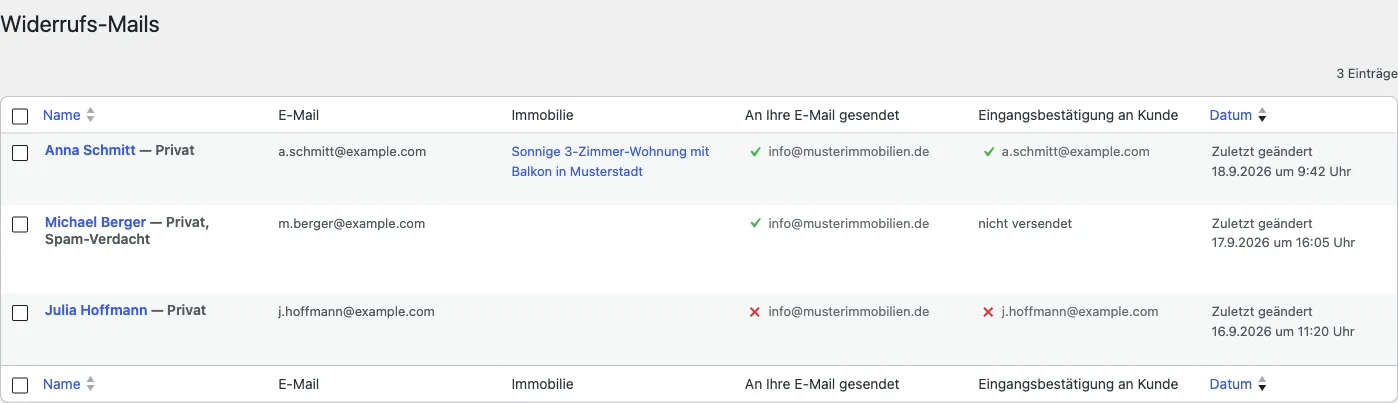
Unlike with contact inquiries, there is no setting for withdrawal emails to turn off the storage - a withdrawal is a legally significant declaration with a deadline, so storing it is a fixed part of sending it.
Spam protection
Section titled “Spam protection”The form is protected by the same invisible checks as every form in the plugin - a honeypot field, the form’s origin, and the fill time. In addition, you can enable ALTCHA. Both are configured under WP-ImmoMakler → Settings → Spam Protection; for an overview, see Spam Protection. The check requires no input from your visitors; the form is still sent via AJAX.
A withdrawal always reaches you: if spam is suspected, the notification to you is merely flagged, never withheld. Only the acknowledgement of receipt to the sender may be skipped in that case.
Embedding via page builder
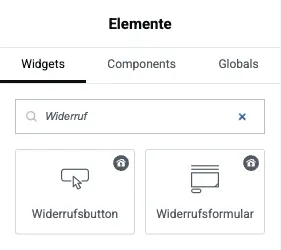
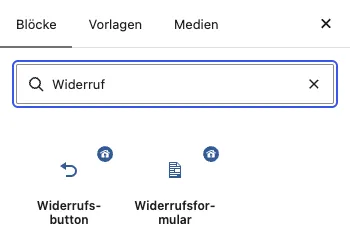
Section titled “Embedding via page builder”For every supported page builder there are two elements - one for the button and one for the form. Internally they render the same shortcodes.
In the button element you choose the withdrawal page from a drop-down list of your pages (instead of entering a URL or ID). If the selection is left empty, the withdrawal page from the settings is used. Via the optional Custom link (URL) field you can instead point the button to any address - for example an external URL, an anchor or the action of a builder-native pop-up; this link overrides the chosen withdrawal page.
| Page builder | Elements |
|---|---|
| Gutenberg | “Withdrawal button” and “Withdrawal form” blocks |
| Elementor | “Cancellation button” and “Cancellation form” widgets (category “WP-ImmoMakler: usable site-wide”) |
| Divi | “WP-ImmoMakler Cancellation Button” and “WP-ImmoMakler Cancellation Form” modules |
| WPBakery | “Cancellation button” and “Cancellation form” elements |
| Bricks | “Cancellation button” and “Cancellation form” elements |
| Oxygen | “Cancellation button” and “Cancellation form” elements |
Styling the button
Section titled “Styling the button”You set the background colour most easily via the Button colour setting (see above); without a custom Button hover colour, the hover colour is derived from it automatically. For styling beyond that, the button is a simple, semantic element with the CSS class immomakler-widerruf-button. Its appearance can be customised via CSS custom properties without editing PHP - for example in the Customizer under “Additional CSS”:
.immomakler-widerruf-button { --immomakler-widerruf-button-bg: #1a7f5a; --immomakler-widerruf-button-bg-hover: #14654780; --immomakler-widerruf-button-radius: 6px;}In the page builders, the respective builder-native style options (colour, spacing, typography) are also available directly on the button element. These settings each take precedence over the global colour setting:
- Elementor: Style tab with the familiar button settings - alignment, typography, text and background colour (normal and hover state), border, border radius, box shadow and padding.
- Divi: Design tab with text/typography, background, border (incl. radius), box shadow and spacing.
- Bricks: Style tab, Button group with typography, text and background colour (normal and hover), border, box shadow and padding.
- WPBakery: Design tab with text and background colour (normal and hover), border radius, padding as well as the WPBakery-native design options.
- Oxygen: controls for text and background colour (normal and hover), border radius and padding directly on the element.
- Gutenberg: the block uses the global button colour by default. Via the Button colour setting in the block you can choose a custom colour; without a custom hover colour in the settings, the hover colour is calculated automatically a little darker from it. If the field is left empty, the global colour still applies.
The page-builder style options above apply only to the withdrawal button (the trigger). The submit button inside the form takes the colour set under Button colour (with the hover colour set under Button hover colour, or the automatically derived one); its text is configured separately via Submit button label.
Native page-builder pop-ups
Section titled “Native page-builder pop-ups”If, instead of the built-in overlay, you want to use a pop-up from your page builder (for example Elementor Pro Popups, Bricks Popups or an Oxygen modal), proceed as follows:
- Set the button to
nonemode (in the page builder: “No behaviour (builder pop-up)”). - Give the button a trigger class via the “Additional CSS class” field (or the
classattribute), e.g.widerruf-popup-oeffnen. - Create a pop-up in your builder and configure it to open when this class is clicked.
- Place the withdrawal form element (or the shortcode
[immomakler-widerruf-form]) inside the pop-up.
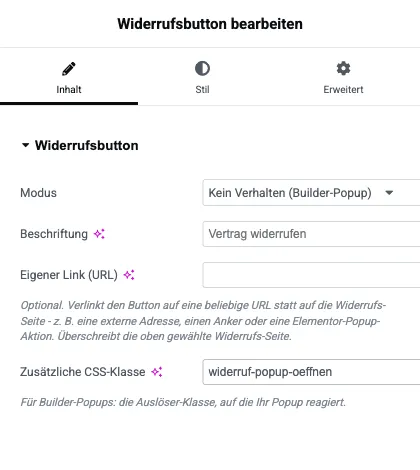
Elementor Pro offers no pop-up trigger for a click on a CSS class. Instead, store an Elementor pop-up action in the “Custom link” field (link attribute).
Customising via filters
Section titled “Customising via filters”The output and the email texts can be customised via filter hooks:
| Filter | Purpose |
|---|---|
immomakler_widerruf_button_html | HTML of the button. |
immomakler_widerruf_form_html | HTML of the form or the success message. |
immomakler_widerruf_makler_emailtext | Text of the notification to the estate agent. |
immomakler_widerruf_confirmation_emailtext | Text of the acknowledgement of receipt to the consumer. |