

Other Theme Builders
In addition to the natively supported page builders, WP-ImmoMakler can also be combined with other theme builders — for example the Thrive Theme Builder, Beaver Themer, or Breakdance. These builders bring their own templates for archive and single pages; WP-ImmoMakler delivers the content via the shortcodes [immomakler-template-archive] and [immomakler-template-single]. The following guide applies to all of these builders. Where it needs labels from a builder, it follows the Thrive Theme Builder; in other builders the steps are named similarly.
Switching off the plugin takeover
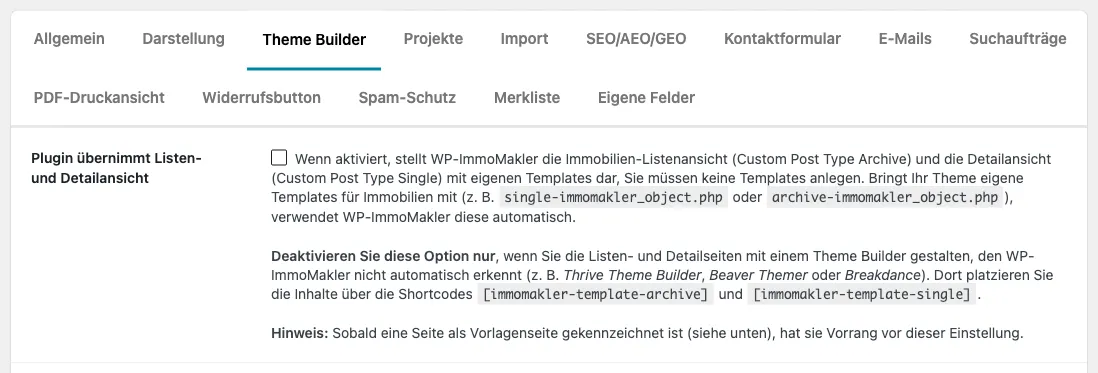
Section titled “Switching off the plugin takeover”In the WordPress backend (wp-admin) under WP-ImmoMakler → Settings → Theme Builder, disable the option Plugin handles list and detail views. As long as it is active, WP-ImmoMakler displays the list and detail views with its own templates, and the templates of your theme builder do not take effect.
The option only appears where it has something to decide. With a block theme, Elementor Pro, Divi, Avada, Oxygen 4 or Bricks it is missing: WP-ImmoMakler recognises their templates itself, and it still displays a property page without a matching template with its own templates. Likewise, WP-ImmoMakler automatically uses the template files of your theme for properties, such as single-immomakler_object.php or archive-immomakler_object.php.
Setting up pages for properties
Section titled “Setting up pages for properties”List view
Section titled “List view”The property list view is rendered via an archive template of your theme builder. WP-ImmoMakler provides the shortcode [immomakler-template-archive] for this purpose, which outputs the complete property list with search form within the archive template.
-
Open the Theme Builder
Open your theme builder, for example the Thrive Theme Builder.
-
Create an archive template
Create a new archive template for the “Properties” custom post type.
-
Design the areas
Design the header, footer, and main area to your liking.
-
Insert the shortcode
Insert the shortcode
[immomakler-template-archive]in the content area. -
Save the template
Save and activate the template.
WP-ImmoMakler then renders the complete property list with search form at the archive URL of the property CPT (typically at /immobilien/).
Detail view
Section titled “Detail view”The detail page of an individual property is rendered via a single template of your theme builder. WP-ImmoMakler provides the shortcode [immomakler-template-single] for this purpose, which outputs the complete detail view (gallery, property data, description, contact form, etc.) within the single template.
-
Open the Theme Builder
Open your theme builder, for example the Thrive Theme Builder.
-
Create a single template
Create a new single template for the “Properties” custom post type.
-
Design the areas
Design the header, footer, and main area to your liking.
-
Insert the shortcode
Insert the shortcode
[immomakler-template-single]in the content area. -
Save the template
Save and activate the template.
WP-ImmoMakler then renders the complete detail view for each property in the layout you designed in your theme builder. Instead of the complete detail view, you can also assemble the page from individual building blocks — such as [immomakler-template-single-gallery] or [immomakler-template-single-map]; you will find the list on the template pages page.
CSS customizations
Section titled “CSS customizations”You can make visual adjustments to the WP-ImmoMakler templates in an update-safe manner via the WP-ImmoMakler Child Skin Plugin. Place your own CSS rules in the immomakler.css file of the Child Skin Plugin.
Setup service
Section titled “Setup service”If you need assistance integrating your theme builder with WP-ImmoMakler, we offer an integration service.